
An AI background music generator helps creators make instrumental BGM for videos, podcasts, ads, games, and presentations without starting from scratch. The best workflow depends on your use case, your license terms, and whether you need seamless loops, voiceover-friendly mixes, or commercial-safe exports. This guide shows how to choose the right tool, write better prompts, and publish with less guesswork. If you want a fast path from idea to track, MelodyCraft can help you sketch one in a few clicks.
From here, we move from the definition into the parts that usually matter most in real work: what counts as “background music,” which formats are easiest to loop, where licensing matters, and how MelodyCraft fits if you want to generate a usable track instead of hunting through libraries.
If you want to start right away, you can generate tracks in MelodyCraft and export in a few clicks. If you’re comparing plans, the pricing page makes it easy to see what export length and usage rights you get before you publish.

What is an AI background music generator (and how is it different from a background music maker)?
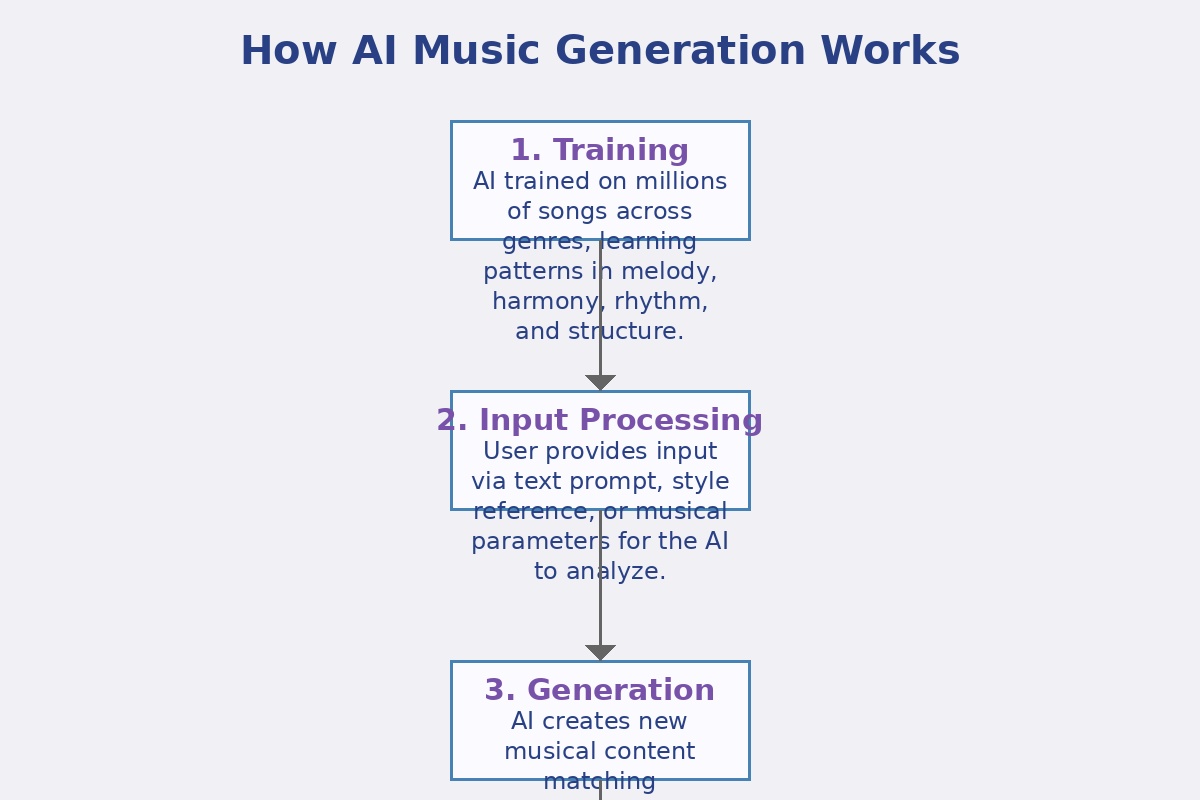
An AI background music generator typically creates brand‑new music from a prompt (text) and/or high-level constraints (style, mood, tempo, duration). A background music maker is often more like a “controlled builder”: you choose from presets, loops, stems, or parameters, then arrange and edit with more predictability.
In practice, many tools blend both. But the difference is still useful when you’re deciding what you need most: speed + variety (generator) vs control + consistency (maker).
Common output formats you’ll see:
Loopable beds (8–32 bars) for tutorials, menus, livestreams
Short cues (10–30 seconds) for intros/outros, stingers
Full tracks (1–3 minutes) for vlogs, explainers
Long-form streams (10–60+ minutes) for focus/ambient content
What creators actually need from AI background music (PAA-style questions answered)
Below are the questions creators ask when they’re trying to pick an AI background music tool and publish without headaches.
Q: Is AI background music royalty‑free?
A: It can be—if the license you receive grants royalty‑free commercial usage. “Royalty‑free” is a license model, not a guarantee that no one will ever claim something.
Q: Can I use an AI background music generator for commercial work?
A: Usually yes with the right plan/terms, but you should confirm commercial use scope, attribution requirements, and whether “client work” is covered.
Q: Can I use AI background music on YouTube?
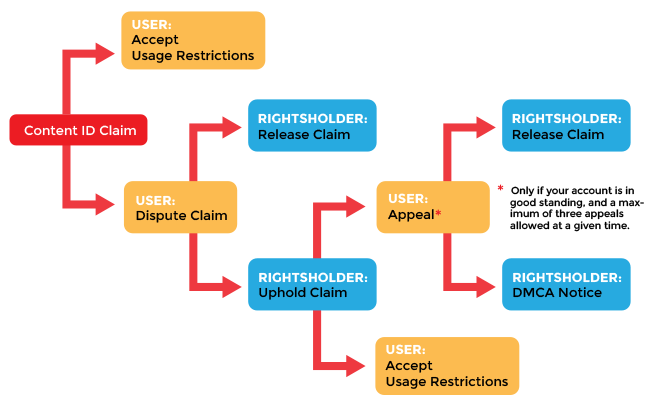
A: Often yes, but YouTube’s Content ID system can still flag audio—even when you have permission. Plan to keep proof of your license/generation.
Q: Can I download WAV?
A: Some tools export WAV, others only MP3/AAC. If you do voiceover or need headroom for mixing, WAV is strongly preferred.
Q: Can I set a specific duration (like exactly 58 seconds)?
A: Many tools allow target durations. If not, you can generate slightly longer and trim while keeping loop points clean.
Q: Can it generate music that’s “just a bed” (no distracting melody)?
A: Yes—ask for no lead melody, minimal motifs, and leave space for voiceover. (You’ll find ready-made prompt templates below.)
Q: How fast is generation?
A: Usually seconds to a couple minutes per version. The practical speed boost comes from generating 3–8 variations in one batch.
Can I use AI background music on YouTube without copyright issues?
YouTube safety is less about one magic phrase (“royalty‑free”) and more about three separate pieces: copyright, license, and Content ID behavior.
1) Copyright (who owns what): Depending on the tool and jurisdiction, AI-generated works can involve complex authorship questions. If you want context on how regulators are thinking about AI and copyright, skim the U.S. Copyright Office filing: U.S. Copyright Office AI brief (PDF).
2) License (what you’re allowed to do): A platform’s commercial license tells you what you can publish, monetize, or distribute. But…
3) Content ID (how platforms detect matches): Even with a valid license, you can still get false claims or automated matches (for example, if a similar track exists, or someone uploaded a similar-sounding piece first). That’s a workflow problem, not always a legal one.
Here’s a 6‑item pre‑publish checklist that reduces surprises:
Confirm the tool’s commercial use terms for your plan (YouTube monetization, client work, ads, games, etc.).
Check if attribution is required (and where to place it).
Export your final audio and keep the project/generation record (date, prompt, track ID).
Save a screenshot/PDF of the license terms that applied when you generated the track.
Search your own channel/library: avoid reusing the exact same bed across dozens of uploads if you’re seeing repeated claims.
If a claim happens, be ready with: license proof + generation record + the exact track file you used.

Need a faster way to make on-brand background music?
Sketch instrumental BGM for videos, podcasts, ads, and games in a few clicks.
Treat “royalty‑free” as a licensing shortcut, not a Content ID shield. Keep receipts (prompts, track IDs, and terms) like you would for stock music.
What length, format, and loop settings are best for background music?
The best settings depend on the job. A background music maker mindset helps here: optimize for structure, loopability, and export quality, not “the coolest drop.”
Practical loop tips (works for almost any background music maker workflow):
Request “loopable” or “seamless loop” explicitly.
Ask for an intro-less version (or a very short pickup), so looping doesn’t stack intros.
Use short fades (50–200 ms) at the loop boundary to hide clicks.
Prefer patterns that land on a clear bar boundary (e.g., 8/16/32 bars).
How to generate instrumental BGM step-by-step (a repeatable workflow)
If you want consistent results from any ai instrumental music generator, treat it like a small production pipeline—not a one‑shot prompt.
Here’s a 6‑step SOP you can reuse:
1) Choose the usage + emotion Start with where it will live (YouTube tutorial, podcast bed, app menu loop) and one emotion (calm, confident, tense, playful). This prevents “cool track, wrong job.”
2) Lock style + instruments Pick 1–2 genre tags and 2–4 instruments. Example: “modern corporate, warm synth pads, muted guitar, soft kick.” Fewer instruments usually means better voiceover space.
3) Set BPM, key, and energy curve Background music works best when the energy is controlled. Ask for “steady energy” or “gentle build” and specify tempo ranges (e.g., 90–110 BPM for relaxed talk tracks).
4) Generate multiple versions (batch) Generate at least 4–8 variations. Your goal isn’t perfection—it’s selecting the one with the cleanest groove, least distracting melody, and best loop potential.
5) Select + micro‑edit Trim awkward intros, soften fills, reduce busy sections, and create loop points. If the tool supports edits, make small changes first (instrument removal, softer drums, less melody).
6) Export + name like a system Export in the best format you have (WAV if available). Use a naming convention like: Project_Platform_Mood_BPM_Key_V1.wav to keep versions manageable.
If you’re generating regularly, check plan limits and export options before committing—start from the tool’s pricing details (for MelodyCraft, see pricing) so your workflow won’t hit a quota mid‑week.

Prompts that work for AI background music (templates you can copy)
Good prompts for ai background music describe the job (use case), sound (instrumentation), and mix behavior (space for voiceover). Use this formula:
Mood + Tempo + Instruments + Structure + Mix constraints
Copy‑paste templates (swap bracketed parts):
YouTube tutorial (voiceover-friendly)
“Calm, confident tutorial background, 95 BPM, warm synth pad + muted guitar + soft kick, minimal melody, steady 2‑section loop, leave space for voiceover, no sharp highs.”
“Educational explainer bed, 105 BPM, marimba plucks + soft bass + light percussion, 16‑bar seamless loop, no lead melody, gentle movement, clean mix.”
Tech review
“Modern tech bed, 110 BPM, tight electronic drums (soft), airy synth arps, subtle riser every 8 bars, 60 seconds, voiceover-first mix, no aggressive snare.”
“Minimal future garage texture, 100 BPM, soft sidechain pads, sparse clicks, 32‑bar loopable, midrange not crowded, no vocal chops.”
Travel vlog
“Uplifting travel background, 120 BPM, light acoustic guitar + glockenspiel + soft claps, 90 seconds with gentle build, no big drops, warm and bright but not harsh.”
“Chill tropical bed, 95 BPM, plucky synth + clean guitar + soft percussion, 60 seconds loopable, keep melody simple, smooth transitions.”
Cinematic teaser
“Tense cinematic underscore, 75 BPM, low strings + pulses + soft impacts, 45 seconds with 3‑act arc, controlled dynamics, no overpowering hits, end with clean button.”
“Epic-lite trailer bed, 90 BPM, brass stabs (subtle) + taiko (soft) + drones, 30 seconds, marketing-friendly, not too dramatic.”
Corporate explainer
“Corporate optimistic bed, 118 BPM, piano chords + light synth + muted bass, 60 seconds, consistent energy, clean and polished, minimal motif.”
“Startup brand music, 112 BPM, upbeat but soft drums, airy pads, simple hook that doesn’t dominate, leave room for narration, loopable ending.”
Podcast intro bed
“Podcast intro bed, 12 seconds, confident and warm, 100 BPM, short logo-like motif then settle, no vocals, clean ending tail.”
“Podcast background bed, 2 minutes, mellow, 90 BPM, Rhodes + soft pads, minimal drums, speech-friendly EQ, seamless loop point.”
Ambient focus
“Ambient focus music, 0–60 BPM feel, evolving pads + subtle noise texture, no percussion, 20 minutes, no melody, very smooth.”
“Lo-fi study bed (instrumental), 80 BPM, soft vinyl texture, gentle chords, minimal drum groove, no prominent snare, loopable.”
Game menu loop
“Game menu loop, 45 seconds, cozy synth + pizzicato plucks, 100 BPM, seamless loop, no long intro, consistent level.”
“Puzzle game background, 60 seconds, playful marimba + light bass, 120 BPM, simple repeating motif, avoid busy fills, loopable.”
How to make background music that doesn’t fight your voiceover
If your voiceover sounds buried, the problem usually isn’t volume—it’s arrangement and frequency density. Great background music for speech is intentionally “incomplete” in the midrange.
What to aim for (even if you’re using a background music maker rather than a pure generator):
Leave space: request “minimal melody” and avoid constant hooks.
Midrange management: reduce busy parts around the vocal presence region (often ~1–4 kHz).
Controlled dynamics: avoid huge swells that force your compressor to pump.
Drum restraint: soft kick is fine; aggressive snare/claps steal attention fast.
Avoid voice-like leads: sax, lead guitar, and certain synth leads can compete with narration.
A quick before/after example (what you change, not the exact audio):
Before: “Upbeat synthwave with lead melody and bright snare fills every 2 bars.”
After: “Same synthwave vibe, but no lead melody, softer snare, pads widened, and a steadier groove that sits under speech.”
Ask for “voiceover-first mix” and “no lead melody,” then generate 6–8 versions. Picking the least intrusive option is faster than trying to EQ a busy track into submission.
Background music maker vs background music generator: which one should you choose?
Choose based on what you need today—and what you need to repeat every week.
A simple decision rule:
If you’re shipping the same format repeatedly (weekly podcast, daily short, game loop packs), a maker-style workflow can keep things consistent.
If every project is different (client ads, varied YouTube topics), a generator-style workflow helps you explore quickly, then you refine.
For teams, define a lightweight system no matter what tool you pick:
Naming convention (project/platform/mood/BPM/version)
A “selects” folder (final candidates only)
One person responsible for license recordkeeping
How to evaluate any AI background music generator (quality, control, licensing, export)
Before you commit, evaluate the tool like you’d evaluate any production dependency. If you want a broader landscape of options, this overview is a useful starting point: best AI music generator roundups.
Use this 10‑point scorecard (0–2 each, total /20). You’ll know within 30 minutes whether the tool fits your workflow:
1) Audio quality — Does it sound clean at normal listening levels? 2) Artifacts/noise — Any warbles, chirps, or unnatural tails? 3) Structure — Does it develop logically (intro/bed/outro) when requested? 4) Loopability — Can you get seamless loops without awkward jump cuts? 5) Control depth — Can you set duration/BPM/instruments/energy reliably? 6) Generation speed — Can it produce 6–8 candidates quickly enough? 7) Export formats — WAV/MP3 availability; sample rate clarity; stems if needed. 8) Licensing clarity — Is commercial use clearly stated for your plan and use case? 9) Uniqueness risk — Do many outputs feel samey or overly template-like? 10) Price vs quota — Are you paying for what you actually use (exports, minutes, generations)?
When you test, run the same prompt three times and compare:
Do you get meaningful variation?
Do the best results still need heavy editing?
Does the tool consistently honor “no lead melody” and “voiceover-friendly”?
Common problems (and fixes): repetition, weird transitions, low-quality mix
Most issues are predictable—and fixable—if you diagnose them correctly.
A practical “two-pass” fix: 1) First pass: generate clean, simple beds (loopable, minimal melody). 2) Second pass: only if needed, add tasteful character (one texture or motif), not a full lead.
Quick checklist before you publish AI background music commercially
Before you ship AI background music to a client, upload to YouTube, or bundle in an app/game, do this quick pass:
Confirm license scope: commercial use, monetization, client work, paid ads, in-app usage.
Re-check platform rules (some platforms have their own restrictions).
Verify whether attribution is required—and where it must appear.
Ensure you’re not re-selling or re-licensing the raw track if the license forbids it.
Save project files + generation records (prompt, date, track ID) and a snapshot of terms.
Export the right format (WAV preferred for pro workflows; MP3 acceptable for lightweight use).
Normalize to a sensible loudness target for your medium (avoid clipping; leave headroom).
Don’t rely on memory for licensing. Save the terms that applied at the time you generated the track—plans and policies can change.
Create your first track with MelodyCraft (fast path)
If you want a streamlined way to go from “I need background music” to “I have export-ready BGM,” here’s a fast path using MelodyCraft as your ai background music generator / background music maker hybrid workflow.
1) Start from the scenario Pick your target first: tutorial bed, podcast intro, ad cue, or game loop. Scenario-first choices prevent overproduced music.
2) Generate multiple options in one go Create several variations with the same core prompt so you can compare apples-to-apples and pick the least distracting bed.
3) Keep prompts consistent for a recognizable sound Save 2–3 “house prompts” (same instruments, BPM range, and mix constraints) so your channel or brand stays coherent.
4) Export in the format you actually need If you do voiceover and editing, prioritize higher-quality exports. If you’re posting quick content, lightweight formats can be enough.
5) Choose a plan based on how often you publish Check MelodyCraft pricing and match the plan to your output volume (how many exports/minutes you need), not just the monthly cost.
A simple way to pick without overthinking:
Make background music in minutes
Turn a simple idea into a usable instrumental track for your next project.