
A lofi song maker can help you build a track from scratch, speed up an AI draft, or turn an existing recording into a softer version—but each workflow solves a different problem. This guide breaks down the tradeoffs so you can choose the route that fits your deadline, your tools, and your licensing needs. If you want a faster place to sketch ideas before polishing them elsewhere, MelodyCraft can help you move from prompt to draft quickly.
From here, we move from the sound design basics into the choices that actually change the result: how to keep a loop from sounding flat, when an online generator is enough, how to prompt AI without getting generic output, and what to check before you publish or monetize the final track.
What “lo‑fi” really means in 2026 (and what’s usually missing)
A beginner 20‑minute workflow you can repeat
How to prompt a lofi song maker AI for non-generic results
Monetization + licensing checks for YouTube/Twitch
Best for:
Beginners who want a clear starting point (no endless plugin rabbit hole)
Creators who need background loops for study, café, sleep, or livestreams
Producers who want fast ideation, then deeper editing later
Pick your fastest path:
From zero (manual): chords → drums → bass → texture → arrange
AI generation: prompt → iterate → export → light humanizing
Convert to lo‑fi: upload your audio → preview → download (with permission)
If you want a simple place to start experimenting, you can sketch ideas in MelodyCraft and refine your direction before committing to a full production session.
What counts as “lo‑fi” in 2026 (and why your beat doesn’t feel lo‑fi yet)
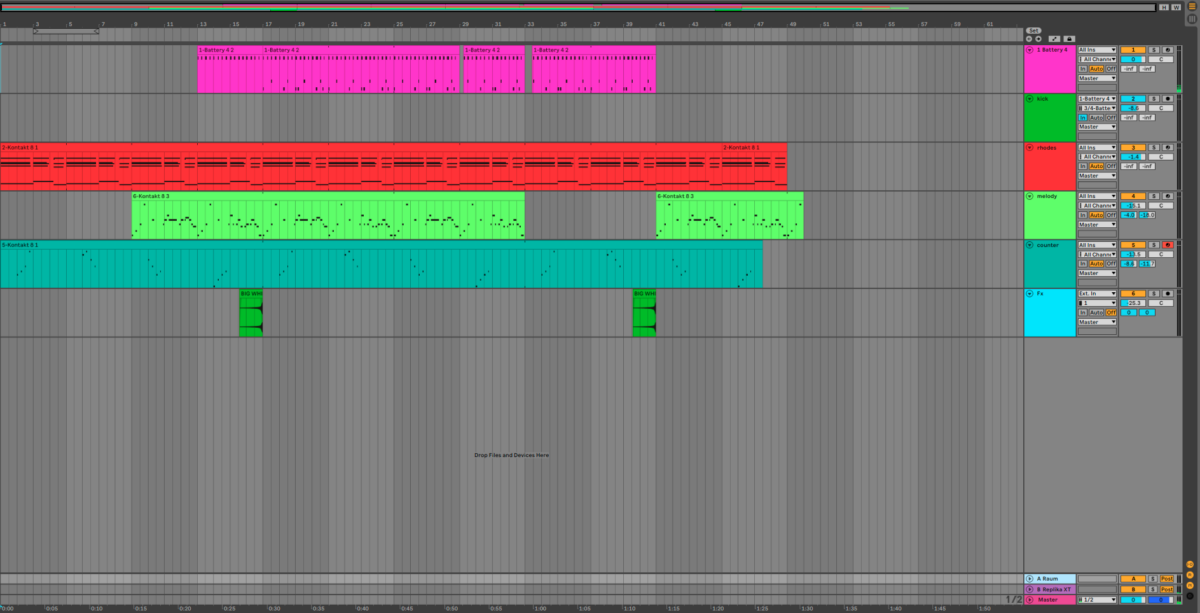
A modern lo fi music maker setup isn’t defined by “low quality.” It’s defined by tasteful imperfection and a comfortable pocket—plus arrangements that don’t demand attention. If your beat still doesn’t feel lo‑fi after adding noise, it’s usually because the musical foundation (chords, swing, and space) isn’t doing the heavy lifting.
Here’s a practical “lo‑fi element checklist” you can troubleshoot in order (top matters most):
Tempo + pocket: relaxed BPM, slightly behind-the-beat snares, human-ish hats
Harmony: jazzy/nostalgic chord colors (7ths, 9ths), simple progressions
Sound selection: dusty drums, mellow keys, soft plucks, muted bass
Space: short room reverb, subtle delays, quiet ambience bed
Imperfections: tape wobble, vinyl, hiss—quiet enough to miss until muted
Arrangement: loopable 8/16/32-bar structure, tiny changes, no big “drops”
If your track feels “too clean,” reduce brightness and transients first (EQ + saturation), then add noise. Noise without warmth usually sounds fake.
Typical lo‑fi tempo, swing, and drum pocket (quick defaults you can copy)
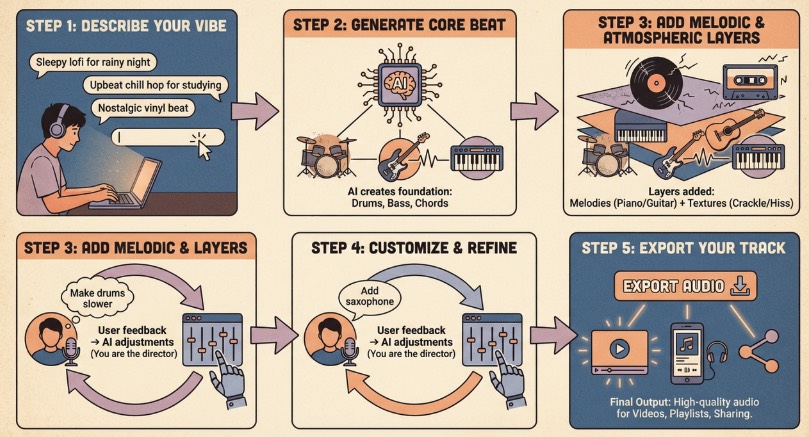
Most lo‑fi sits where your head can nod without urgency. If you’re stuck, copy these defaults and adjust only one parameter at a time.
Copy-paste defaults (starter cheat sheet)
Pocket tricks that instantly help:
Nudge snare/clap 5–15 ms late (or use a groove template)
Keep hats soft: lower velocity on off-beats, save loud hits for transitions
Leave silence: a bar with fewer hats can feel more human than more layers
The “warmth” recipe: chords, tape wobble, vinyl, ambience (rain/cafe)
“Warmth” is mostly arrangement + tone, not a single plugin. The order matters because you want the harmonic bed to feel nostalgic before you decorate it with texture.
A reliable warmth order (do this first → last):
Chords & voicings: minor 7ths, add9, gentle inversions (avoid huge jumps)
Instrument tone: softer piano/keys, filtered plucks, mellow guitar, muted Rhodes
Saturation: subtle tape/tube-style drive to round transients
EQ shaping: tame harshness (often 2–5 kHz), gently roll off extreme highs
Tape wobble (wow/flutter): small amount for movement
Vinyl/noise: quiet layer, automated lower during intros/outros
Ambience: rain/café at low level, high-passed so it doesn’t muddy bass
Common mistake: pushing vinyl/rain too loud so your mix turns gray and cloudy. A good test is to mute ambience—if the song collapses, you’re using ambience as a crutch. If it just feels a little less “alive,” you nailed it.
Do you need a DAW, or can a lofi song maker do it all online?
A lofi song maker can absolutely be enough—especially if your goal is quick background loops, content beds, or first drafts. But if you need deep sampling, automation, and mix control, a DAW still wins.
Use this decision logic:
You want speed and zero setup: go online (fast presets, quick export)
You want full editing and your own sound: go DAW (deep control)
You only have a phone/tablet: mobile apps are perfect for sketching
You plan to publish seriously: pick the workflow that gives you licensing clarity and consistent exports (WAV, loop points, metadata)

When an online lo‑fi maker wins (speed, presets, zero setup)
An online lofi song maker wins when you need “from 0 to something playable” fast—without audio drivers, plugin installs, or project management.
What to check before you commit to a tool:
Export formats: Can you download WAV (or only MP3)?
Loop length: Can you export seamless 8/16/32-bar loops?
Editability: Can you swap chords/drums after generation, or is it “one-and-done”?
Ownership/licensing: Is the output usable for your channel/stream?
If your goal is daily content (short videos, livestream beds), speed and repeatability often beat perfect control.
For study, chill, or background music ideas, MelodyCraft gives you a quick way to start from a vibe instead of a blank session.

If you want a faster way to sketch a first-pass lo-fi loop before moving into a DAW, try MelodyCraft as a drafting surface for ideas, structure, and quick variations.

When a DAW wins (full control, sampling, mixing depth)
A DAW wins when you care about control in specific, audible ways:
Multitrack control: independent EQ, compression, saturation per element
Automation: filters opening slightly in the last 4 bars, noise ducking under snare hits
Sidechain & dynamics: gentle pump on pads, consistent low end
Sampling workflows: slicing, pitching, time-stretching, resampling “to tape”
Mix depth: clean mono-compatible bass + wide-but-soft stereo keys
If you love the lo‑fi sound because it’s crafted, not just generated, a DAW makes the “human” details easier to build on purpose.
How to make a lo‑fi track from scratch in 20 minutes (beginner workflow)
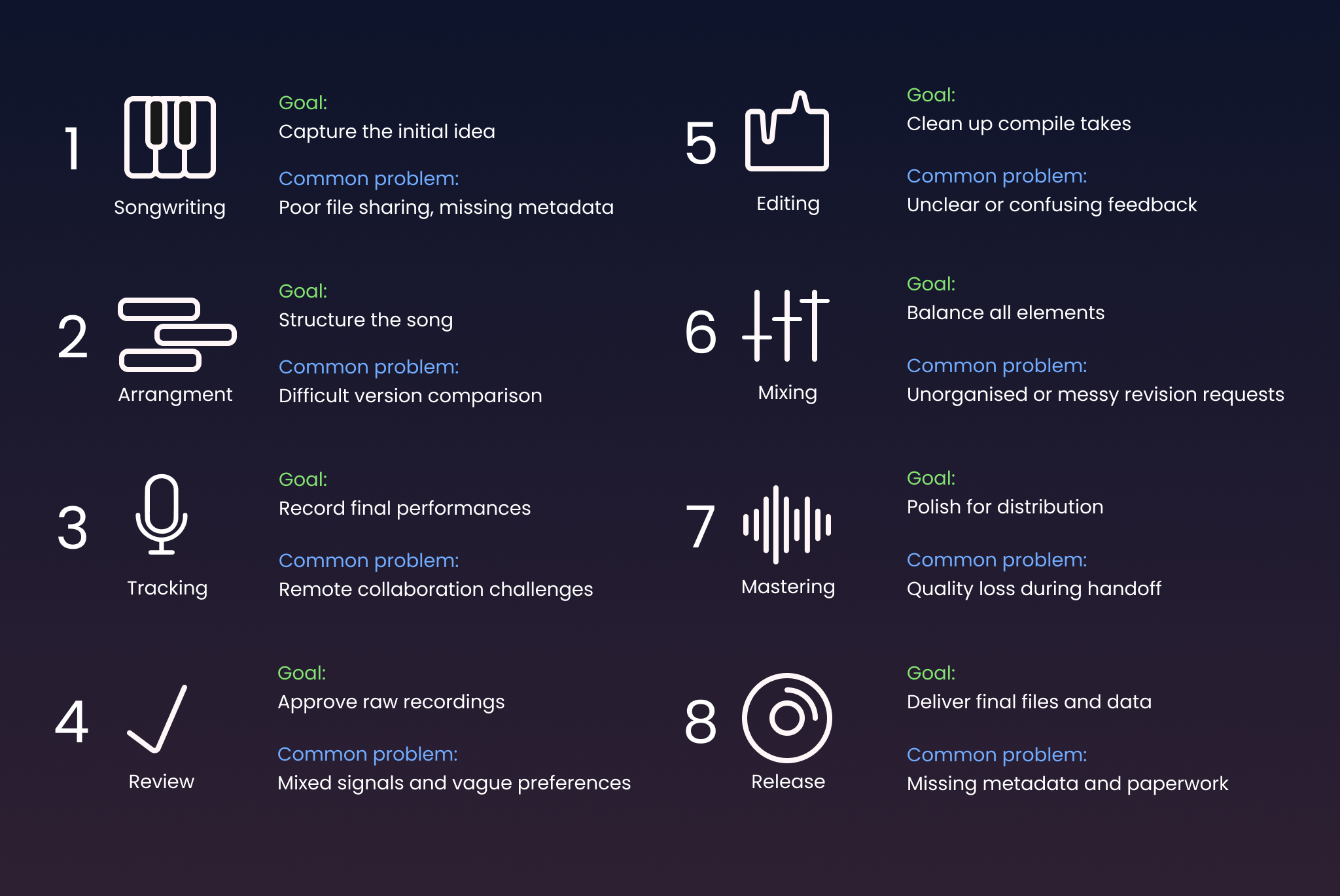
This is a repeatable lofi song maker / lo fi music maker workflow you can run anytime you feel stuck. The goal isn’t a perfect mix—it’s a loopable track that already feels like lo‑fi.
0–5 minutes: Chords first
Do: pick a key, write a 2–4 chord loop, choose a warm instrument. Why: lo‑fi lives on harmony; drums can be minimal if chords feel right. Common mistake: choosing a complex progression with too many chord changes.
5–10 minutes: Drums and pocket
Do: kick/snare/hat groove, then add one tiny hat variation every 4 bars. Why: lo‑fi is “steady,” but not robotic. Common mistake: loud hats and overly busy fills.
10–15 minutes: Bass + top line
Do: bass that follows roots (or 5ths), then a very simple 2–3 note motif. Why: bass anchors the mood; melody should support, not compete. Common mistake: bass fighting the chords in the low-mids.
15–20 minutes: Texture + arrangement + quick polish
Do: add vinyl/tape lightly, set a short room reverb, arrange intro/loop/outro. Why: arrangement makes it usable (study loop, background vibe, content bed). Common mistake: turning texture up until the mix sounds dull and cramped.
If you want to speed-run this workflow in one place (and iterate quickly), start a draft in MelodyCraft and refine the vibe from there.
Step 1 — Pick a mood + key + chord loop that won’t sound cheesy
A lo‑fi chord loop should feel nostalgic and stable. Two tricks: use extended chords (7ths/9ths) and keep movement minimal.
Three lo‑fi-friendly progressions (Roman numerals):
i7 – iv7 (two-chord loop): minimal, hypnotic, great for study
i7 – VImaj7 – v7 – iv7: emotional but still mellow (avoid huge voicing jumps)
ii7 – V7 – Imaj7 – vi7: jazzy resolution; keep tempo slower to stay chill
Make it instantly less cheesy:
Use inversions so the top note moves by step (not leaps)
Try 7th/9th tones quietly (don’t stack every extension loudly)
Filter the instrument slightly (a gentle low-pass can “age” the tone)
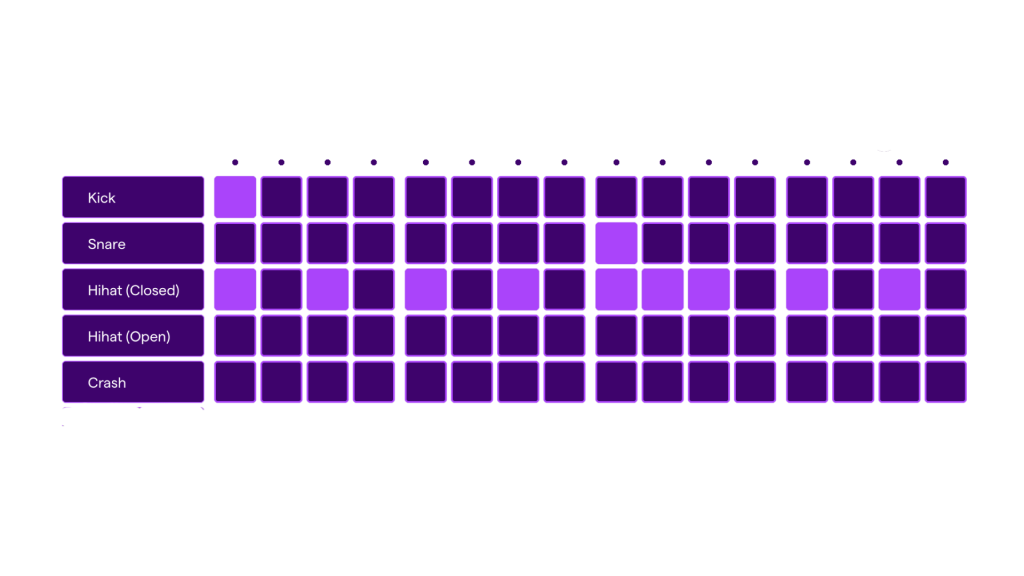
Step 2 — Build drums and groove (hi-hat variation, ghost notes)
Start with a “minimum viable drum kit,” then add small human details.
Minimum viable lo‑fi drum set:
Kick: simple pattern, leave rests
Snare/clap: consistent backbeat (2 & 4), slightly late
Hi-hat: 1/8 notes, low velocity
Add two quick variations:
Hat variation (every 4 bars): one 1/16 flourish or a brief hat drop
Ghost note (snare): very quiet hit right before the main snare (tastefully)
The best lo‑fi grooves often feel like they’re not trying to impress. If your drums sound “too producer-y,” remove 20% of the hits and lower hat volume.
Step 3 — Add bass + a simple top melody (don’t fight the chords)
Bass in lo‑fi should be felt more than heard. Keep it supportive:
Follow the root most of the time; use 5ths as occasional movement
Keep notes longer (fewer fast runs)
If the bass is masking your chords, reduce bass harmonics (EQ or softer bass tone)
For melody: use a 2–3 note motif that repeats with tiny changes (rhythm changes beat pitch changes). The point is to add a “memory hook” without stealing attention from the chord bed.
Step 4 — Texture and arrangement (intro, loop length, small ear-candy)
If you want your track to work as background music, arrangement matters as much as sound.
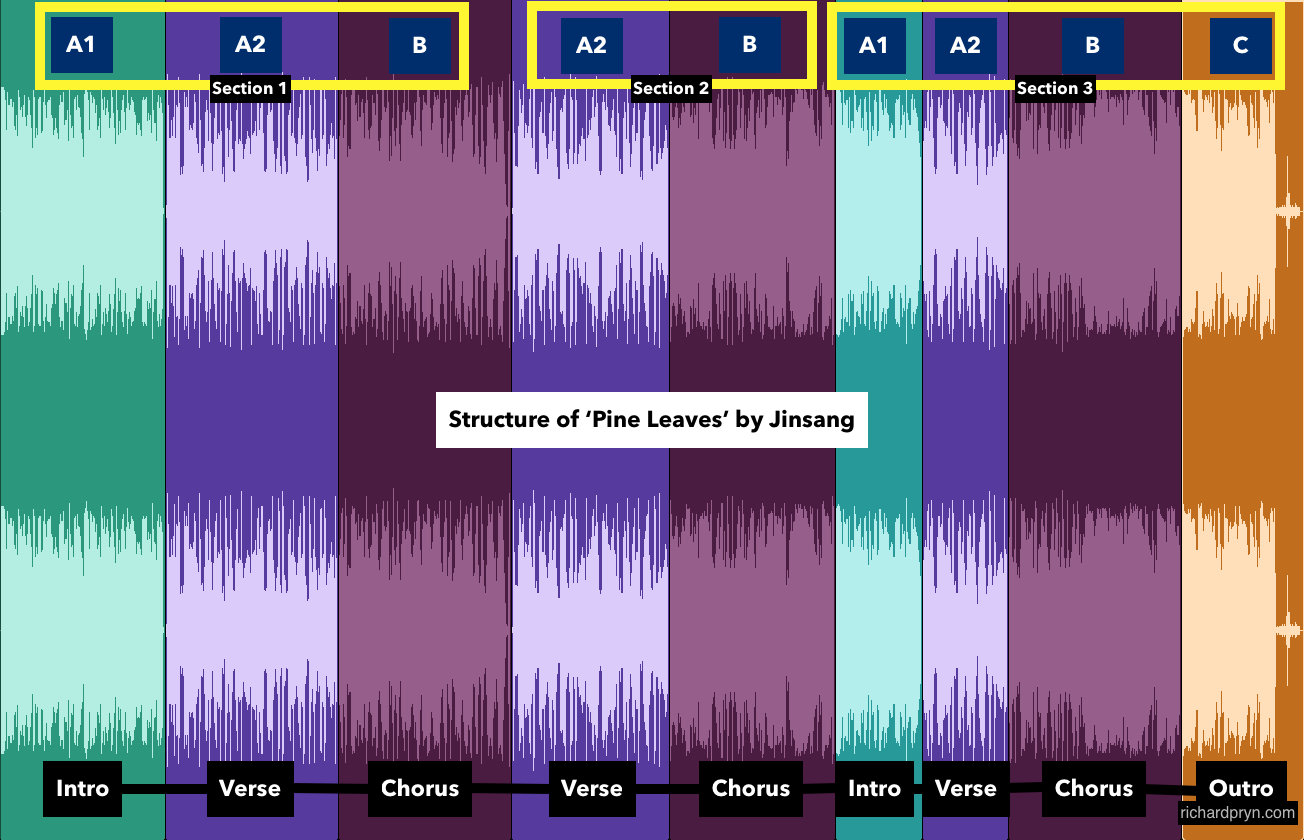
A simple, loop-friendly structure:
Intro (4–8 bars): chords + ambience, no full drums yet
Main loop (8/16 bars): full groove, subtle variation every 4 bars
B section (8 bars optional): remove hats or swap chord voicing
Outro (4–8 bars): strip elements so it can loop or end cleanly
Ear-candy ideas that stay subtle:
One reverse cymbal into bar 1
A filtered chord stab every 8 bars
Automation: slightly close the filter for the last 2 bars, then reopen
How to use a lofi song maker AI without getting generic results (prompting playbook)
A lofi song maker AI can feel repetitive if you reuse the same vague prompt. The fix is to make your prompts structured and to iterate with “subtractive” edits first (less busy, fewer elements), then add character back in.
If you want to explore a reference point for AI lo‑fi generation, here’s a mainstream example: Kapwing’s lo‑fi generator. No matter which tool you use, the prompting logic below stays useful.
The prompt formula: vibe + tempo + instruments + imperfections + ambience
Use this order to reduce randomness and “samey” outputs:
Prompt template (copy): Vibe + tempo + instruments + drum character + imperfections + ambience + mix notes
Example: Warm jazzy chords, 80 BPM, Rhodes + muted guitar, dusty boom-bap drums, subtle tape wobble, light vinyl, rain ambience, soft highs, no aggressive lead.
Swap-in word bank (quick options):
Vibe: nostalgic, bittersweet, cozy, late-night, dreamy, study-friendly
Instruments: Rhodes, upright piano, nylon guitar, vibraphone, soft synth pad
Drum character: dusty, brushed, boom-bap, swung, minimal, rimshot snare
Imperfections: subtle wow/flutter, gentle saturation, cassette noise
Ambience: rain, café chatter (very low), room tone, distant city, fireplace
If you want to see how this feels in practice, MelodyCraft lets you start from a short prompt, choose a vibe, and generate a lo-fi draft without opening a blank project.
Avoid “add lots of vinyl and distortion” as a first instruction. You’ll often get muddy lows and dull highs—then you’ll fight the mix instead of guiding the music.
12 ready-to-copy prompts for study, sleep, café, anime, and rainy nights
How to iterate: “make it slower,” “less busy hats,” “more vinyl,” “remove melody”
Treat iteration like a producer giving notes. Start by removing what’s wrong, then add personality back.
Second-pass instruction dictionary (copy/paste ideas):
Tempo/pocket: “Make it 6 BPM slower”, “push snare slightly late”, “add light swing”
Density: “Less busy hi-hats”, “remove extra percussion”, “simplify fills”
Melody: “Remove lead melody”, “replace melody with a sparse motif”
Texture: “Slightly more vinyl, keep it quiet”, “add subtle tape wobble”
Harmony: “Use jazzier voicings, keep progression simple”, “avoid dramatic chord changes”
Structure: “Make a seamless 16-bar loop”, “add 4-bar intro without drums”
A practical strategy: generate 3–6 versions, pick the best chords + groove, then iterate on only one issue per revision (e.g., hats first, then ambience, then melody).
AI lo‑fi music generator vs converting an existing song to lo‑fi (which should you use?)
An ai lofi music generator is best when you want original music and repeatable output. A lo‑fi converter is best when you already have audio and need a quick “vibe pass.”
If you’re specifically looking at conversion tools, here’s an example: OpenMusic’s lo‑fi converter.

Need a faster way to sketch chill lo-fi ideas?
Use MelodyCraft to turn a rough mood, playlist vibe, or study-beat prompt into a draft you can refine later in your DAW.
When “convert to lo‑fi” is faster (demos, remixes, background vibes)
Conversion is often fastest when:
You have a demo and want a lo‑fi preview for socials
You want a background version of your own track (muted highs, softer drums)
You’re making a remix vibe for internal use or concept testing
Limitations to remember: converters can’t magically fix a cluttered mix. If the original vocal is harsh or the low end is messy, the converted output will still carry those issues.
When text-to-music is better (royalty-free originals, repeatable style)
Text-to-music is better when you need:
A repeatable series (e.g., “Rainy Night Beats #1–#50”)
A consistent brand sound (prompt library + version naming)
Lower copyright risk than sampling/unauthorized uploads
Simple workflow that scales: save your best prompt, then maintain versions like RN80_v3_lessHats / RN80_v4_noLead so you can revert quickly.
If you want a quicker way to sketch lo‑fi ideas before polishing them in a DAW, try MelodyCraft as a fast starting point for drafts, variations, and arrangement ideas.

Make a lo-fi draft for study, chill, or background music
Start with a vibe, pick a tempo, and use MelodyCraft to turn the idea into a cleaner loop before you export and polish.
Can you monetize AI lo‑fi on YouTube/Twitch? A licensing checklist creators actually need
Yes, you can monetize AI lo‑fi—but only if you treat licensing like part of the production process. Different tools define “royalty-free” differently, and platform policies can change.
To compare typical terms and plan options, review the licensing details on your generator, and also sanity-check what you’re paying for. For example, here’s one reference point: MusicCreator’s lo‑fi generator and MelodyCraft pricing.
Pre-publish licensing checklist (save this):
Confirm the plan you used allows commercial use (not just personal)
Confirm whether Content ID claims are possible (some tools register outputs)
Screenshot or export:
the license/terms page
your account plan page
the project/export page showing date/time and track ID (if available)
Avoid using:
unlicensed acapellas, copyrighted anime dialogue, or ripped songs as inputs
For livestreams:
test on a private stream first
keep your proof of license ready in case of disputes

Royalty-free vs exclusive: what the terms usually mean (and what to screenshot)
Here’s what these terms usually mean in plain English (always verify per tool):
Royalty-free: you can use the music without paying per play; may still have limits on redistribution
Commercial use: allowed in monetized videos/ads/streams (sometimes only on paid tiers)
Exclusive: only you can use that exact track (rare, often expensive, may be time-limited)
Attribution required: you must credit the tool/creator in description
No redistribution: you can’t upload the raw track to “music dump” channels or resell as stock
What to screenshot: the specific clause about monetization, Content ID, and whether others can generate similar tracks.
How to make your lo‑fi feel “human” (tips producers use that AI often misses)
A lot of listeners now actively look for non-generic, human-feeling lo‑fi. The good news: you don’t need to “fight AI”—you just need to add the subtle inconsistencies that producers naturally create.
Practical humanizing moves:
Micro timing drift: tiny nudges, not sloppy playing
Velocity variation: accents and soft hits, especially on hats
Chord inversions: smoother top-note movement
Resampling mindset: print a section, then reprocess it (even lightly)
Micro-imperfections: timing drift, pitch wobble, noisy tails (use subtly)
Use subtlety as a rule: if you hear the effect immediately, it’s often too much.
Quantified starting points (adjust by ear):
Timing: 5–15 ms late on snare/clap; hats ±5 ms random
Wow/flutter: low amount; aim for “movement,” not seasickness
Noise tails: short vinyl bursts or room noise in gaps, ducked under main hits
The highest-end lo‑fi feels like a real performance captured imperfectly—not like a preset set to 100%.
Avoid the 3 biggest lo‑fi mixing mistakes (muddy lows, harsh highs, flat stereo)
If you only do one thing: make the low end simple and mono-safe. Lo‑fi is supposed to be comforting—muddy bass is the fastest way to ruin that.
Best lofi song maker tools to try right now (quick comparison for beginners)
If you’re shopping for a lofi song maker, don’t start with brand names—start with your workflow. For broader context on beat-making software categories, you can also reference overviews like this one from Tracklib.
A practical beginner stack is: generate/rough-sketch quickly, then polish the best idea in a deeper editor—especially if you plan to release consistently.
FAQ: lofi song maker questions people keep asking (free, editing, BPM, exporting)
Q: Is there a free lofi song maker (and what are the usual limits)?
A: Yes—many tools offer free tiers, but limits are common: monthly generation caps, watermarks, lower-quality exports, or no downloadable WAV. A good rule is: use free plans to find your workflow, then subscribe only when you’re publishing weekly (or need commercial licensing proof). You can compare plan differences on pages like MelodyCraft pricing.
For a fast compare-and-choose workflow, you can also use MelodyCraft to draft a loop quickly, then decide whether to refine it further in a DAW or keep iterating inside the app.

Q: Can I edit an AI-generated lo‑fi track after it’s created?
A: Usually, you have two options: (1) iterate inside the generator with better second-pass instructions (less hats, remove melody, change tempo), or (2) export and edit in an audio editor/DAW. If you don’t get stems, you can still do a lot with EQ, saturation, reverb, and arrangement edits—but stems make deeper changes (like swapping the snare) much easier.