
If you want to make music BPM slower with AI, the best method depends on whether you want a clean tempo change or a stylized slowed version with lower pitch and reverb. The safest workflow is to choose the goal first, then use the right tool, export format, and pitch-lock settings so the result sounds intentional instead of broken. This guide walks through the fastest AI workflow, DAW fixes, prompt-based alternatives, and the licensing checks that matter before you publish.
From here, we move from the definition into the practical part: how to choose the slowdown amount, where artifacts usually appear, and where MelodyCraft fits if you want to generate a slower version from scratch instead of stretching a finished mix.
Before you touch a slider, pick one of these outcomes:
Option A (clean): slow down the song without changing pitch (same key, same voices).
Option B (style): create a slowed version (often slower + lower pitch + reverb).
For a quick overview of AI-based slowdown options, this guide aligns with workflows like making music BPM slower using AI, but goes deeper on quality and producer-grade fixes.

Do you want “slower BPM” or “slower playback”? Pick the right goal first
People often mix up change tempo BPM, “speed,” and “pitch.” That’s how you end up with a track that’s technically slower—but vocals sound like a “deep voice” meme, drums turn watery, or the groove drifts.
Here’s the clean way to think about it:
And here’s a practical “picker” to avoid the common mistake:
If you’re doing any detailed audio work, it helps to understand the underlying time/pitch processing concepts described in tools like Adobe’s time and pitch manipulation effects (useful even if you’re not on Adobe) in this reference: time/pitch manipulation effects.
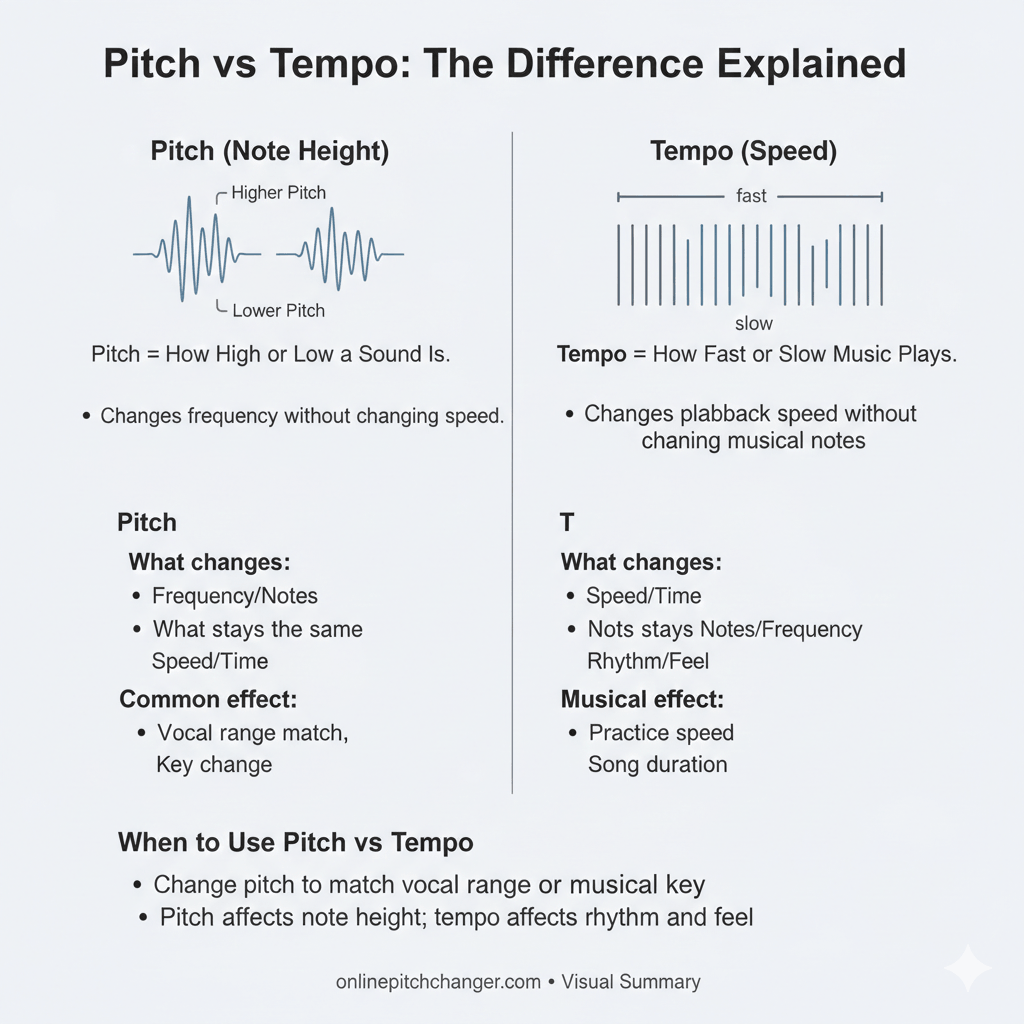
What happens if you slow down without pitch lock (the “deep voice” effect)
If you slow a song down without pitch lock, you’re effectively doing repitch/varispeed: duration increases and pitch drops together. That’s why vocals get deeper, snares feel heavier, and the whole track sounds like it’s “melting” lower.
A simple mental model:
Pitch lock ON: slower time, same pitch (clean slowdown for practice, transcription, or key-locked edits)
Pitch lock OFF: slower time, lower pitch (classic “deep voice” vibe)
This is also why “slowed and reverb” edits are usually a two-step aesthetic: 1) slow the track (often with repitch or intentional semitone drop), then 2) add spacious reverb (and sometimes a touch of delay) to exaggerate tail and mood.
If you want a one-click style version, a dedicated generator can be faster than building a chain manually—e.g., an AI slowed and reverb generator.
The fastest AI workflow: upload a song, set target speed, export
If your goal is simply to make music BPM slower quickly (especially for listening, practice, or content editing), an online AI workflow is usually the fastest path—often under 3 minutes—because it bundles time-stretch + pitch lock into a simple control.
A straightforward option is an online BPM/speed tool like this BPM changer. Many similar tools follow the same pattern.
3-minute “do it now” checklist
Upload your audio (WAV/FLAC preferred; high-bitrate MP3 if that’s what you have).
Choose what you’re changing: tempo/BPM or speed percentage (look for pitch lock).
Enable pitch lock if you want to slow down song without changing pitch.
Set your target (e.g., 0.9× speed or 120 BPM → 108 BPM).
Preview/monitor artifacts (listen to hi-hats, vocal sibilance, reverb tails).
Export once to your final format (don’t repeatedly re-export MP3).
If you hear metallic “swirl” or watery cymbals, try a smaller slowdown first (5–10%) and compare before going further.
You can also explore speed-changer style workflows like those described in tools such as AceStep’s music speed changer (useful for understanding common controls): music speed changer.

How to choose the amount of slowdown (percentage vs BPM)
Most tools let you slow down in one of two ways:
By speed percentage: e.g., 0.95×, 0.90×, 0.80×
By target BPM: e.g., 128 BPM → 115 BPM
They’re linked by a simple relationship:
New BPM = Original BPM × Speed
Example:
Original BPM: 120
Speed: 0.90×
New BPM = 120 × 0.90 = 108 BPM
If you don’t know the original BPM yet, you can either use a BPM detector in your DAW or use a calculator to sanity-check pitch/tempo relationships (this kind of tool is handy for quick math): tempo & pitch calculator.
Practical guidance (rule of thumb):
0.95× to 0.90×: usually clean for most full mixes
0.85× and below: more artifacts unless you use strong algorithms or stems
Best export settings for minimal artifacts (formats, bitrate, dither)
A lot of “AI slowdown” guides skip export settings, but export choices can be the difference between “sounds fine” and “why does it shimmer?”
Here’s a safe export cheat sheet:
Key quality rules:
Export lossless first (WAV/FLAC), then compress once if you need MP3/AAC.
Avoid “MP3 → slow down → MP3 → slow down again.” Each generation compounds artifacts.
If you must go from 24-bit to 16-bit WAV, apply dither once at the final bounce (many DAWs do this automatically—just don’t dither repeatedly).
For a broader walkthrough of AI slowdown workflows and common pitfalls, this reference is aligned with typical online-tool behavior: make music BPM slower using AI.
If you need “real BPM slower” for a remix: time-stretch vs repitch explained
When producers say “make the BPM slower,” they often mean “make it fit a new tempo grid”—not just “play slower.” That’s where time-stretch (pitch locked) and repitch (speed + pitch together) matter.
A clean comparison:
In many DAWs and editors, these concepts map directly to time/pitch features like those described here: time/pitch manipulation effects. If you’re specifically trying to slow down tempo and pitch together (the classic slowed feel), producer discussions like this thread are a useful sanity check on expectations: how to slow down tempo and pitch together.

Why drums can get “watery” and vocals can sound “phasey” after slowing down
Even with good algorithms, slowing down a full mix can create artifacts—especially on dense cymbals, reverbs, and layered vocals.
Common artifact causes (and fixes):
Drums sound watery / smeared: the algorithm struggles with noisy, transient-rich material (hi-hats are the usual culprit).
Fix: try a Percussive/Beats mode, or reduce slowdown amount.
Vocals sound phasey / chorused: stretch introduces micro-modulation in sustained harmonics.
Fix: try a Monophonic/Vocal mode; consider processing vocals separately if you have stems.
Transient “flam” on kicks/snares: stretching can duplicate or shift transients slightly.
Fix: use transient-preserving modes; in a DAW, add warp markers around hits.
A practical workflow upgrade:
If you can, split the mix into stems (drums / vocals / music) and time-stretch each with the best-suited algorithm. Even two stems (vocals vs instrumental) can sound dramatically cleaner than stretching the entire mix at once.

Need a cleaner way to build a slower version?
Generate a slow BPM draft in MelodyCraft instead of stretching a final mix and fighting artifacts.
Step-by-step in a DAW (when AI tools aren’t enough)
If online AI tools aren’t giving you the quality you need—or you’re preparing a remix—doing it in a DAW gives you control over detection, warp markers, and stretch algorithms.
Here’s a “works in almost any DAW” template to change tempo BPM and still slow down song without changing pitch:
Import the audio into a new project.
Detect or set the original BPM (auto-detect is a start; verify with a metronome).
Enable time-stretch/warp on the audio clip.
Choose the stretch algorithm (vocals vs drums vs complex mixes).
Set the project tempo to your target (e.g., 128 → 115).
Check warp markers (align downbeats; fix any drift in long sections).
Render/bounce to a lossless format, then do final compression/export.
The bigger the tempo change, the more “algorithm decisions” you’re forcing. If you need an extreme slowdown, consider a stylistic repitch (intentional) or re-generate a slower arrangement instead of stretching a final mix.
Ableton tip: when to use Repitch vs Complex/Beats warp modes
In Ableton specifically, users often ask how to slow down tempo and pitch together without weird artifacts. The simplest decision tree is:
Do you want pitch to drop when it slows?
Yes → use Repitch (classic tape/turntable behavior).
No → keep reading.
Is the source mostly drums/percussion?
Yes → try Beats (preserves transients better).
No → keep reading.
Is it vocals/monophonic lead?
Yes → try Complex Pro (or a vocal-friendly mode if available).
No / full mix → Complex or Complex Pro, then adjust formants/settings if needed.
That “pitch together” confusion comes up constantly, and this discussion is a good reference for real-world expectations and results: Ableton repitch vs warp modes.
How to make a “slowed + reverb” version (the TikTok-style edit)
A “slowed + reverb” track is not trying to be transparent. It’s deliberately stylized: speed down, optionally pitch down, then reverb (and sometimes delay) to create space and emotional weight.
A clean, repeatable chain looks like this:
Speed: 0.85× to 0.93× is common
Pitch (optional): -1 to -4 semitones for that deeper feel
Reverb: longer decay, moderate pre-delay, keep it musical
EQ: low-cut the reverb return to avoid mud
Compression (optional): gentle glue to keep tails controlled
If you want the simplest one-step workflow, try a purpose-built tool like an AI slowed and reverb generator or compare with alternatives like this slowed and reverb generator.
If you’re generating music with AI, tell the model the slower BPM upfront
If your goal is a clean slower version, the highest-quality solution is often: don’t stretch at all—generate (or re-generate) the music at the slower tempo from the start. This avoids time-stretch artifacts completely, and it keeps drums, ambience, and transients natural.
With MelodyCraft, you can bake “slow” into the prompt: specify target BPM, whether the drums should feel half-time, and what kind of arrangement density you want.
A copy-ready prompt template (swap the brackets with your choices):
Genre: [lo-fi / trap / cinematic / house]
Mood: [dreamy / dark / nostalgic / uplifting]
Target BPM: [60–90]
Drum feel: [half-time / swung / straight]
Arrangement: [sparse / layered / drop at 0:45]
Instruments: [vinyl keys, soft bass, airy pads, etc.]
Prompt examples: lo-fi 70 BPM, trap half-time 140→70 feel, cinematic 60 BPM
Lo-fi (70 BPM, warm and dusty) Prompt: Create a lo-fi hip hop beat at 70 BPM. Mood: nostalgic, rainy-night. Soft kick and snare, subtle vinyl crackle, mellow jazz chords, warm bass, simple topline motif. Arrangement: 8-bar loop with small variations every 4 bars. Keep dynamics gentle and avoid harsh highs.
Trap (140 BPM project, half-time 70 feel) Prompt: Create a modern trap beat at 140 BPM with a half-time feel (sounds like 70). Dark, spacious mood. Punchy 808, tight snare/clap on the half-time backbeat, crisp hats with occasional rolls, minimal bell or synth motif. Arrangement: intro 8 bars, hook 16, short break, hook repeat.
Cinematic (60 BPM, emotional build) Prompt: Compose cinematic underscore at 60 BPM. Mood: tense but hopeful. Instruments: piano, low strings, evolving pads, soft percussion. Slow build over 90 seconds with a clear rise at 0:45 and a restrained climax at 1:15. Keep low end controlled and leave space for dialogue.
Ambient pop (80 BPM, dreamy) Prompt: Create dreamy ambient pop at 80 BPM. Airy vocals-friendly instrumental with sidechained pads, simple pluck melody, soft drums, and lush reverb. Keep chords consistent and use subtle transitions every 8 bars.
If you want A/B comparisons, keep the same chord progression and motif across prompts—only change BPM and drum feel. That makes it obvious whether the “slow” version is truly cleaner than a stretched export.
Troubleshooting: “My slowed song sounds bad”—quick fixes by symptom
When a slowed export sounds off, it’s usually one of a few predictable issues. Here are fast fixes you can apply immediately.
Symptom: clipping / distortion after slowing
Lower the output gain by -1 to -3 dB before export.
If the tool adds limiting, turn it off and limit later in a DAW.
Symptom: drums feel blurry or watery
Try a percussive/transient-focused algorithm mode.
Reduce slowdown amount (e.g., 0.90× instead of 0.85×), then re-check.
Symptom: vocals sound phasey or “wobbly”
Switch to a vocal/monophonic algorithm mode.
If possible, time-stretch vocals separately from the instrumental.
Symptom: tempo drifts over time
In a DAW, add warp markers on downbeats (intro, verse start, hook start).
Re-check original BPM detection—auto-detect is often slightly wrong.
Symptom: reverb tails get unnaturally long
Use a slightly smaller slowdown.
Add gentle compression or automate tail volume down in the loudest sections.
For deeper context on why these artifacts happen and which modes help, this time/pitch overview is a solid reference point: time/pitch manipulation effects.
FAQ: legality, quality, and workflow questions people actually ask
Q: Can I slow down a song without changing pitch?
A: Yes—use time-stretch with pitch lock. Many online tools and DAWs support this. If you want a starting point for the AI approach, see this guide-style workflow: make music BPM slower using AI.
Q: Will slowing down reduce audio quality?
A: It can. Any time-stretch may add artifacts (watery cymbals, phasey vocals), and exporting to MP3 repeatedly makes it worse. Best practice is export WAV/FLAC, finalize edits once, then compress to MP3/AAC if needed.
Q: Can I do this on my phone?
A: Usually, yes. Mobile-friendly web tools can change speed/tempo, and many apps offer pitch lock or “preserve pitch.” If you mainly want the slowed aesthetic, a dedicated slowed+reverb tool may be simpler than full DAW-style control.
Q: How do I find the original BPM of a song?
A: Use a DAW’s BPM detection, tap tempo, or an online BPM tool. Some web-based changers include BPM readouts after upload—tools like this BPM changer often provide a quick estimate you can verify by ear.
Q: What’s the safest way to avoid artifacts?
A: Start with high-quality audio (WAV/FLAC), keep slowdowns moderate, use the right algorithm mode (percussive vs vocal), and avoid multiple lossy exports. If you need a very slow version, consider generating it at the target BPM instead of stretching.
Q: Is it legal to slow down and upload someone else’s song?
A: Copyright rules vary by country and platform. In general, changing speed/pitch doesn’t automatically make a track “free to use.” If you’re publishing, use licensed material, your own recordings, or royalty-free sources—and treat this as general information, not legal advice.
Q: If I want a slower version for my own content, is generating a new track easier?
A: Often, yes. If your end goal is “this vibe, but slower,” generating at the correct tempo avoids time-stretch artifacts. You can do that directly in MelodyCraft and set the BPM upfront. For plan details, see MelodyCraft pricing.
Make slower music that still sounds clean
Go from idea to a slower draft quickly. No technical skills required.