
Mubert is best thought of as a background-music generator: it is strong for loopable beds, mood tracks, and long-stream style audio, but it is not built to create fully arranged vocal songs. This review covers what Mubert generates, how Render and the free tier feel in practice, what to check for licensing, and when a song-first tool like MelodyCraft makes more sense.
Below, we’ll move from the practical question most creators actually have—what Mubert is good for today—to the parts that matter when you decide whether to use it: the kinds of audio it generates, how Render and Studio fit into the workflow, what the free tier can realistically prove, and when an alternative is the smarter buy.
What is Mubert—and what does it generate (songs, loops, or long streams)?
Mubert is an AI-driven music platform that’s primarily used to generate instrumental tracks, loops, and longer “stream-like” background music you can place under content. In practice, many outputs behave like continuous, atmosphere-first music beds: great for keeping energy consistent in a video, less ideal when you need a track with obvious “song sections” (intro/verse/chorus/bridge).
If you’re searching “mubert ai music” because you want fast background audio for editing timelines, here’s the simplest way to map it:
A good way to sanity-check expectations: many AI music generators fall into either “song generation” or “background generation.” Mubert is commonly discussed in the background/utility category in broader explainers like DigitalOcean’s overview of AI music generators, where use cases skew toward creator needs and scalable audio creation.
Is Mubert an “AI music generator” or a sample-based generator?
At a creator level, the most useful mental model is:
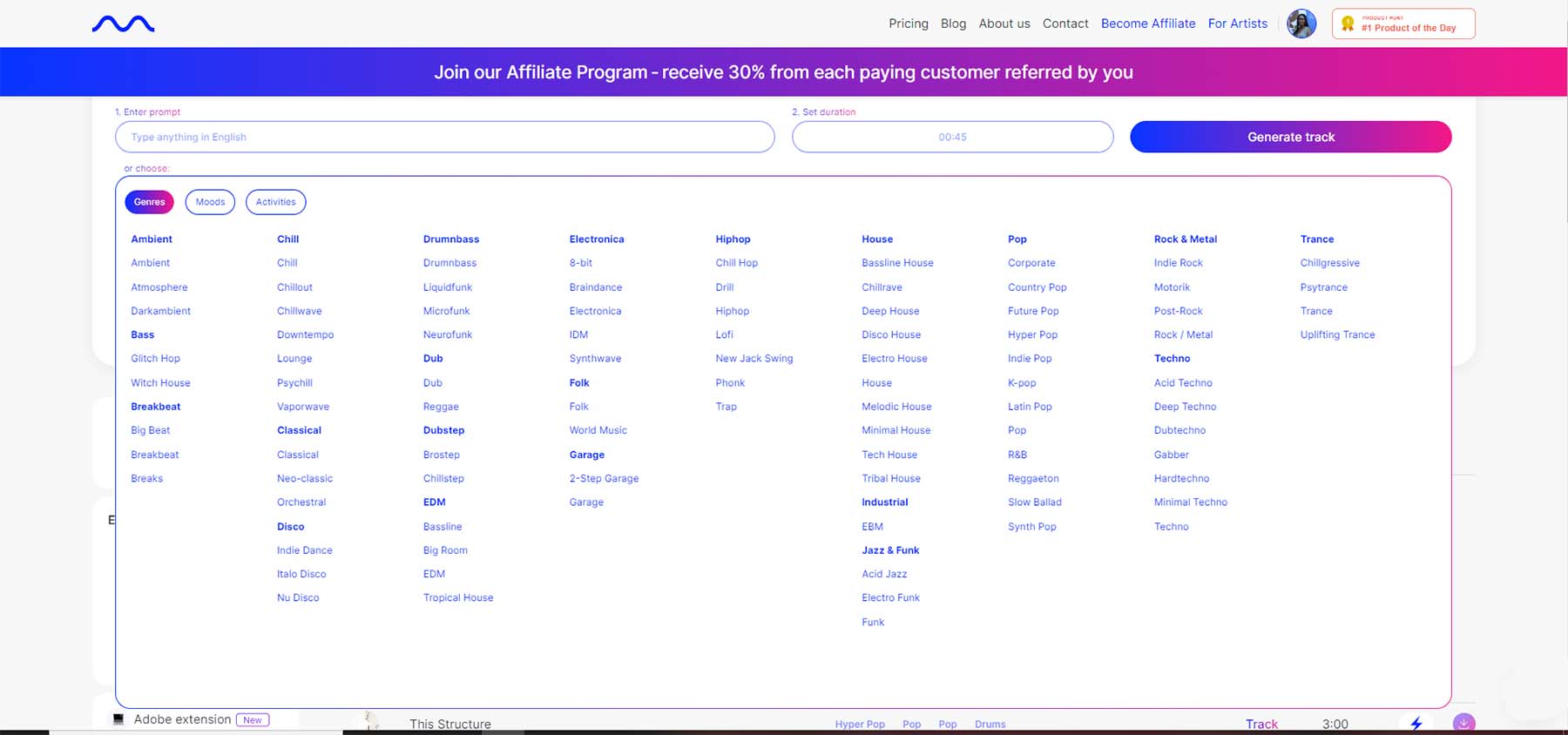
You choose a mood / genre / use case → the system generates a coherent-sounding instrumental bed → you iterate until it fits your edit.
Under the hood, AI music products can combine multiple techniques (models + curated audio building blocks). That’s why many Mubert results can feel loopable or “continuously evolving but not dramatically changing”—which is often a feature for creators who want consistency under voiceovers.
Instead of over-focusing on terminology (“pure AI” vs “sample-based”), focus on the practical outcome: Mubert AI music generator outputs are designed to be usable as background audio quickly, as described in general AI music tool surveys like DigitalOcean’s guide and creator-oriented reviews like SoundGuys.
If you need obvious structural moments (a “drop,” a chorus lift, a hard stop), plan to edit your video around the generated bed, not the other way around—or pick a tool made for full-song structure (see Alternatives).
Is Mubert free? What the free tier lets you generate vs download
Yes, you can typically try Mubert for free in some form—but free access often differs between “generate/preview” and “download/use under a license.” The exact rules can change by plan and over time, so treat this as a checklist and verify against the current official Mubert pages (start with Mubert’s own plan and licensing context on pages like Render instruments/keys).
Here’s a practical “free tier” checklist you can use before you invest time generating dozens of takes:
Don’t assume “free to generate” means “safe to monetize.” For YouTube/TikTok, you want clear licensing terms tied to your specific download/export, not just a preview you captured.
How to avoid wasted generations on the free tier (quick settings that matter most)
If you’re on a limited free tier (or any plan with generation caps), wasted generations usually come from vague inputs and overlong first attempts. The fix is to constrain the problem.
Use this “3-step save generations” workflow:
Lock the use case first: “podcast intro,” “tech product demo,” “meditation,” “vlog B-roll.” This keeps pacing and intensity in a useful range.
Generate short first, then scale: make a 10–20 second version to validate vibe; only then generate 60–180 seconds.
Iterate one variable at a time: if it’s too intense, change energy words; if it’s too repetitive, change pacing words; if it’s the wrong palette, change style/genre words.
Quick settings that usually matter most for “mubert ai music” outcomes:
Duration (short previews reduce regret)
Energy / intensity (calm vs driving)
Pacing (steady vs pulsing)
Platform context (voiceover-friendly vs foreground)
Can you use Mubert music on YouTube/TikTok without copyright claims?
You can often use Mubert music on YouTube/TikTok without copyright claims if you have the right license for that track and you follow the plan’s rules—but it’s important to separate two ideas:
Licensed / royalty-free: you have permission under specific terms.
Claim-proof: nobody (or no automated system) will ever misidentify your audio.
Even properly licensed tracks can sometimes get flagged by automated Content ID-style systems, re-uploads, or bad actors. The most important creator habit is documenting your right to use the exact audio file you published.
For official plan and licensing language, start from Mubert’s own pages such as Mubert Render instruments/keys, then follow through to your account/license details during download.
Pre-publish compliance checklist (fast):
Export/download the track from your logged-in account (don’t screen-record a preview).
Save license proof: receipt, license page, or export record.
Keep a copy of the original audio file (and the project file / timestamp).
If attribution is required, add it immediately (YouTube description, TikTok caption, etc.).
Avoid re-uploading the same file through multiple “copyright cleaning” sites (can increase matching risk).
If you still get a claim (post-publish):
Don’t panic-edit the audio first (you may need the original as evidence).
Gather your license/export proof and submit an appeal/dispute using the platform’s workflow.
If the claim persists, contact Mubert support with your export details.
What “royalty-free” typically means (and what it doesn’t) for creators
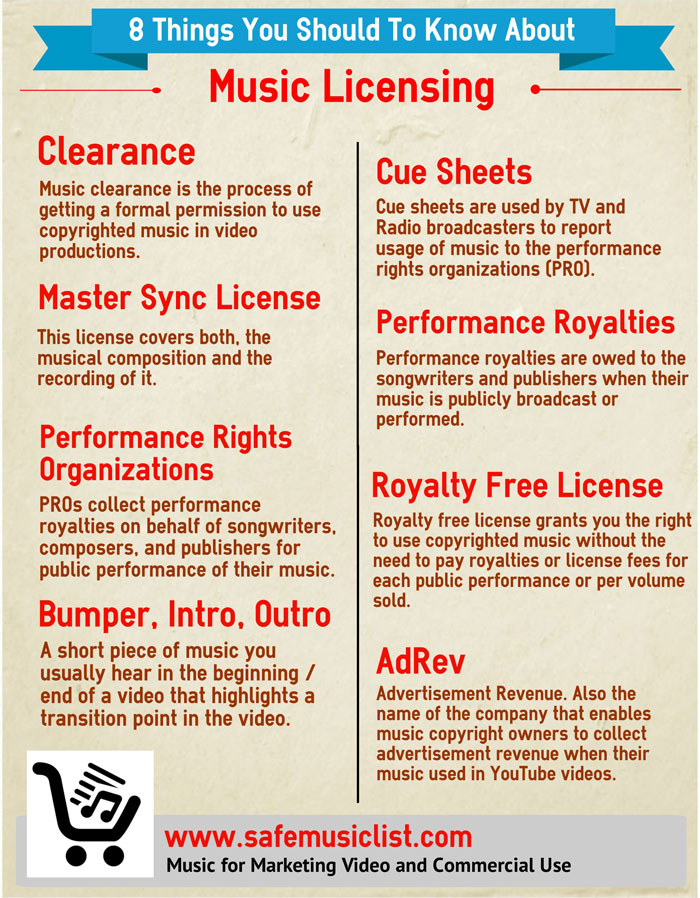
“Royalty-free” usually means you don’t pay ongoing per-play royalties in the way traditional licensing might require—but you still must follow the license terms (where you can use it, whether you can resell it, whether you must credit, etc.). Creator-facing summaries (like broader tool roundups on SoundGuys) often highlight this practical framing: it’s about simplifying creator usage, not eliminating all rules.
Here are common scenarios and what to check:
Client projects (freelance editing): confirm the license allows commercial use for client work, and whether the client needs their own license.
Ads/paid media: check whether your plan covers paid promotion (some licenses treat ads differently).
Monetized channels: confirm that monetization is allowed on your tier and keep proof for disputes.
Redistribution (e.g., uploading the track as “music” to streaming platforms): many licenses prohibit reselling/redistributing the audio as a standalone product.
A simple “claim handling” flow you can follow:
Identify claim type: Content ID match vs manual DMCA.
Match to your proof: export record + license terms at time of download.
Dispute with evidence: attach or reference your license/export.
Escalate if needed: platform escalation → provider support.
How to use Mubert Render to generate a track (step-by-step)
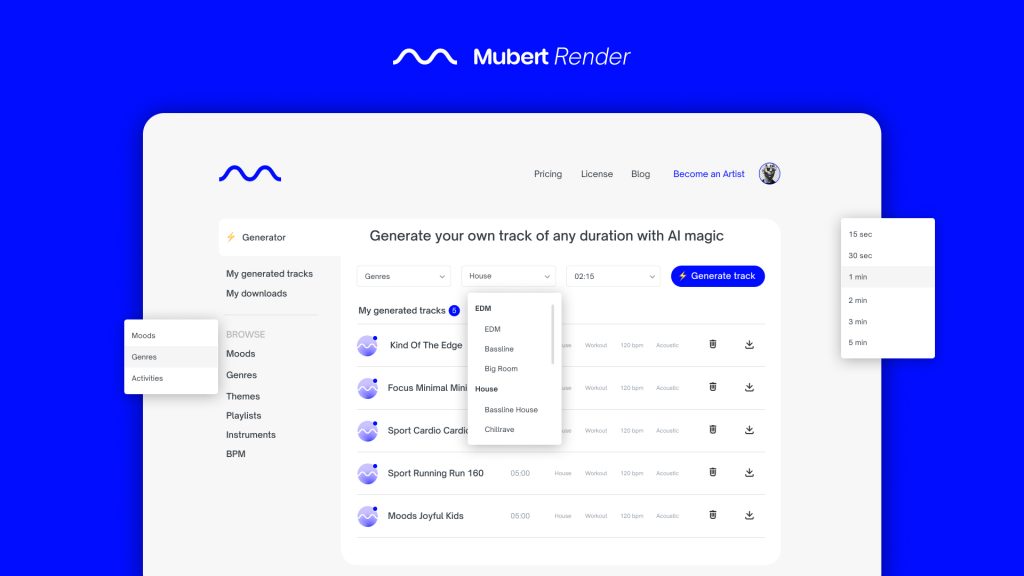
Mubert Render is the “creator side” most people mean when they say “mubert render” or “mubert ai music generator.” The goal is speed: generate, audition, adjust, export.
A practical step-by-step workflow:
Pick a clear mood + purpose
Example: “calm lofi for talking head,” “uplifting corporate tech,” “ambient meditation.”
Common failure: you choose only a genre (“house”) but not the use case.
Fix: add a functional constraint (“voiceover-friendly,” “minimal,” “no heavy drops”).
Set duration for your edit
For short-form: start with 10–20s.
For intros/outros: 15–30s.
For long BGM: 2–10 minutes depending on your loop strategy.
Common failure: generating too long first.
Fix: short preview → then generate final length.
Generate 3–5 variations immediately
Treat early outputs as a “palette,” not a final.
Common failure: trying to perfect one take through tiny tweaks.
Fix: batch first, refine later.
Audition inside your timeline
Drop candidates under your actual voice/music/SFX.
Common failure: judging in solo; it sounds great alone but clashes with speech.
Fix: audition at your final LUFS/levels with voiceover on top.
Export and archive proof
Save the file plus any license/export confirmation for future disputes.
Common failure: losing the export record when a platform flags the upload.
Fix: keep a “Licenses” folder per project/client.
Best prompt patterns for Mubert AI music (mood + use case + pacing)
For Mubert-style generation, prompts (or inputs) usually work best when you use listener words rather than music theory. Think: texture, energy, scene, pacing, emotion.
Below are copy-friendly templates you can adapt. (Replace bracketed parts with your needs.)
A repeatable creator workflow is to keep a tiny “prompt bank” per channel:
3 prompts that always work for your brand
3 prompts for special series (reviews, trailers, tutorials)
What is Mubert Studio—and how musicians can contribute and earn
Mubert Studio is aimed at the musician/producer side rather than the editor side. Instead of generating tracks for your content, Studio is typically positioned as a way for creators to contribute musical material (often described as samples/loops/assets) that can be used within the broader ecosystem.
If you’re a musician considering Mubert Studio, think in terms of:
Catalog contribution: you provide content that can feed generation.
Earnings: compensation models vary; always verify current terms in your account/docs.
Fit: if you already make loopable textures, ambience, drums, and genre beds, Studio may align well.
If you’re mainly a video editor/podcaster, you’ll almost always start with Render first (next section).
Mubert Render vs Mubert Studio: which one should you open first?
Use this decision rule:
You are a content creator, editor, brand, marketer, podcaster → start with Mubert Render (you need usable background tracks now).
You are a producer, sample creator, musician → explore Mubert Studio (you want to contribute content to the system).
They can work together in a simple loop:
Studio-side contributors expand the available building blocks.
Render-side users generate more varied beds from that pool.
Better variety improves outcomes for both groups over time.

Mubert Render vs Studio vs API: which option fits your workflow?
If you’re comparing “mubert render” and “mubert studio,” don’t ignore the API option—especially if you’re building an app, generating audio at scale, or automating production for many assets.
A quick workflow comparison:
If you’re a developer, Mubert’s own examples around monetization and integration are worth reviewing, especially the official API-focused post: how to make money with vibe coding using Mubert API.
What is a “Mubert secret code”—promo code, referral, or scam?
“Mubert secret code” is usually shorthand for one of these:
A promo/discount code from a campaign
A referral code shared by a creator/partner
A limited-time event code (newsletter, social promo)
But it can also be bait for phishing or account theft. Treat any “secret code” post as untrusted until you verify it comes from a legitimate channel. Social platforms are where many code rumors spread (for example, short-form promo-style posts like this Instagram reel can trigger “secret code” searches), but you should still validate with official sources.
6-point safety check before entering any code:
Only enter codes on the official Mubert domain.
Avoid “code exchange” sites asking for your login.
Don’t install browser extensions to “unlock” discounts.
Check whether the code requires you to start a paid plan immediately.
Screenshot the offer terms (expiry, eligible plan) before paying.
If the checkout URL looks odd, stop and navigate manually.
Where to look for legit Mubert codes (and what to do if one doesn’t work)
The safest places to find legit codes are:
Official emails/newsletters
Official campaign/landing pages
Verified partner announcements (that link back to Mubert)
If a code doesn’t work, troubleshoot systematically:
Alternatives to Mubert AI music generator (best picks by use case)
If you like Mubert’s speed but it doesn’t match your end goal, pick your next tool based on the job, not the hype. Broader comparisons like SoundGuys’ best AI music generators and overview explainers like DigitalOcean reinforce that different tools optimize for different outputs (background beds vs editable songs vs voice generation).
Here’s a practical way to choose alternatives to a mubert ai music generator:
Short-form background music (fast, loopable): tools like Mubert-style generators are still strong; prioritize licensing clarity and export workflow.
Full songs (structure + hooks): choose a song-oriented generator that aims for verses/choruses and more “track identity.”
Brand/commercial teams: prioritize clear licensing, team collaboration, and consistent output across many deliverables.
Editable structure: choose tools that support sections, variations, or exports that are easy to cut (or provide stems).
If your real need is complete songs (not just background beds), consider MelodyCraft as a more song-forward alternative—especially when you want outputs that feel closer to a “finished track” workflow.


Need full songs instead of background beds?
Try MelodyCraft when you want a cleaner path from idea to draft track, not just a loopable instrumental layer.
When MelodyCraft is a better fit than Mubert (full songs vs background beds)
You’ll usually be happier with MelodyCraft over Mubert when:
You need song-like structure (clear intro/build/drop/chorus feel) rather than an endless bed.
You want something that stands as the main content (a track to share), not just background.
You’re making content where the music must carry emotion changes (scene turns, reveals).
You prefer a more straightforward download/plan decision instead of optimizing around generation limits.
You’re building a repeatable “from idea → finished song” pipeline.
You can explore features on MelodyCraft and review options on the pricing page.
Questions people ask about Mubert AI (quick answers)
Below are fast answers to common “mubert ai” questions. Where relevant, you’ll see links back to the exact sections above so you can act immediately.
Does Mubert generate vocals?
Q: Does Mubert generate vocals?
A: In most creator discussions and tool roundups, Mubert is treated primarily as an instrumental/background generator rather than a vocals-first songwriter (see how it’s positioned in lists like SoundGuys’ AI music generator roundup). If you specifically need sung vocals, you’ll likely want a song-oriented tool instead. For a practical decision, start with what Mubert tends to produce well—beds/loops (see what Mubert generates)—and use a full-song tool if vocals are central.
Can I make a podcast intro/jingle with Mubert?
Q: Can I make a podcast intro/jingle with Mubert?
A: Yes—Mubert AI music generator outputs can work well for 15–30 second podcast intros because you often want a consistent mood that doesn’t overpower speech. Generate multiple short versions first, then pick the one that leaves space for your voice. Export the exact file you’ll publish and keep license proof (see YouTube/TikTok licensing tips). For broader “what AI music generators can do” context, FAQs like Which AI Tool’s overview can help set expectations.
Why does my Mubert track sound repetitive—and how do I fix it fast?
Q: Why does my Mubert Render track sound repetitive—and how do I fix it fast?
A: Repetition usually happens because loop-friendly beds are designed to stay consistent. Fast fixes: (1) swap emotion/texture words (e.g., “evolving,” “dynamic,” “building”), (2) generate shorter and stitch 2–3 variations, (3) try a different pacing/energy level, (4) avoid prompts that imply constant pulse (“driving,” “relentless”) if you want variety, and (5) use simple editing: crossfades, filters, risers, or a mid-point cut. If you’re on limited generations, follow the free-tier efficiency steps to test variety with short previews first.