

This review evaluates the EasyMusic AI music generator through a practical lens: speed, control, output quality, and commercial usability. It explains where EasyMusic AI performs well for fast content production, where outputs can fall short, and how to improve results with a repeatable prompt-and-edit workflow. You’ll also find clear guidance on free-plan limitations, licensing checks before monetization, and when it makes sense to switch to a more full-stack alternative. If your goal is to publish usable music quickly, this guide helps you decide whether EasyMusic AI is the right fit.
EasyMusic AI (often searched as easymusic or easymusic ai music generator) is a text-to-music tool designed to help you generate background tracks—or full songs—fast, without traditional composing skills. If your main goal is quick, usable audio for YouTube, ads, podcasts, or game prototypes, it’s worth trying.
In this guide, you’ll learn what EasyMusic AI generates, how to prompt it for better results, what to expect from the free plan, and what to double-check before commercial publishing. You can explore the product directly on the official page: EasyMusic AI Music Generator.

What is EasyMusic AI and what can it generate from a text prompt?
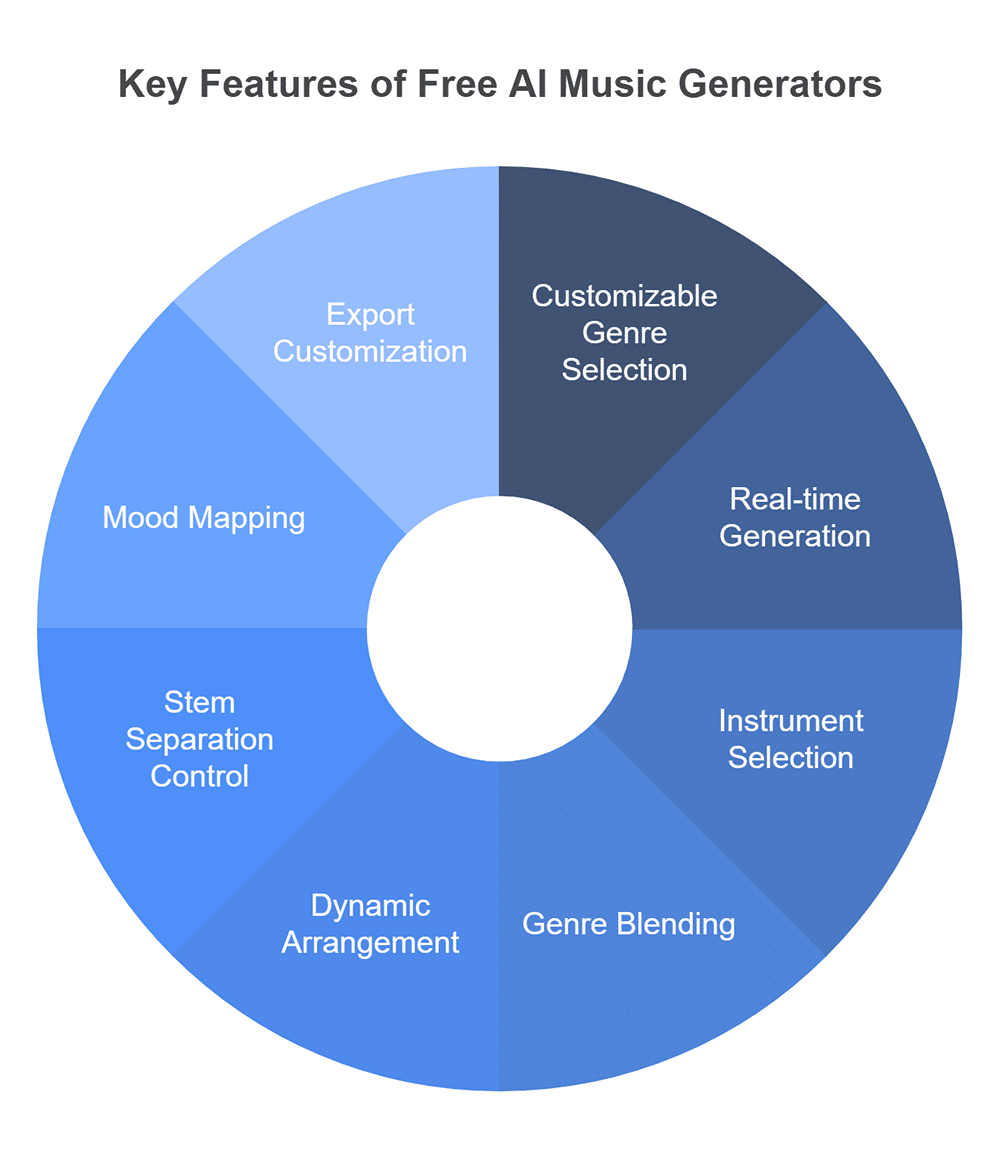
EasyMusic AI is a text-prompt-based music creation tool: you describe the vibe (genre, mood, tempo, instruments), and it outputs an audio track you can download and edit. Think of it as “creative direction in, music out.”
In practical terms, most creators use an easymusic ai music generator in two main ways:
Instrumental music (BGM): beats, ambient beds, cinematic cues, loops for gameplay, podcast intros.
Vocal songs (when supported): music with a topline and vocals, where your prompt influences structure and performance style.
What you can usually control (even if the UI wording differs) includes:
Style/genre (lofi, EDM, acoustic, cinematic, corporate, etc.)
Mood (uplifting, tense, nostalgic, dreamy)
Energy/tempo (often via “fast/slow” or BPM-like hints)
Instrumentation (e.g., “piano + strings,” “808s + hi-hats,” “clean electric guitar”)
Use case (loopable, intro/outro, background, trailer)
This makes EasyMusic AI especially handy for:
Short-form video BGM (TikTok/Reels/Shorts) where you need 10–30 seconds that matches a cut
Podcast branding (a consistent intro/outro)
Indie game prototyping (loopable exploration/combat themes without hiring a composer for early builds)
Is EasyMusic AI different from an “AI song generator” or “AI music generator”?
From a user standpoint, “music” and “song” tools overlap, but they’re not always the same experience. Here’s the simplest way to choose:
A helpful mental model:
AI music generator = “Give me a track that fits a scene.”
AI song generator = “Give me a performed song with vocals and sections.”
If you’re comparing tools in this category, this broader overview of how AI music generators work can help you interpret feature wording and limitations across platforms: DigitalOcean’s AI music generators guide.
Is EasyMusic AI free, and what limits should you expect on the free plan?
Yes—many people try easymusic via a free tier first, but the exact limits can change. In most AI music tools, “free” commonly means some combination of:
a monthly generation cap (credits or minutes),
slower queue times during peak hours,
restrictions on downloads (or fewer formats),
and sometimes watermarks or limitations on commercial rights.
Because plan rules change frequently, treat any numbers you see in third-party listings as directional only, and verify directly on the product’s pricing/plan screens (“as displayed on the page”). If you want a quick third-party snapshot to cross-check what’s currently listed, you can start with a directory entry like GoodFirms’ Easy Music AI page and then confirm inside the app.
A practical decision path that saves time:
Use the free plan to validate the core fit: genre accuracy, loop quality, and whether it matches your content pacing.
Only consider upgrading after you’ve found 2–3 prompt patterns that reliably produce your preferred style.
Upgrade when you need more versions, higher-quality exports, or clearer commercial usage terms (depending on the plan).
Before you judge quality, generate 3–5 variations with the same prompt and only change one variable (e.g., “90 BPM” → “110 BPM”). You’ll learn faster what the model actually responds to.
How to use EasyMusic AI music generator (step-by-step workflow)
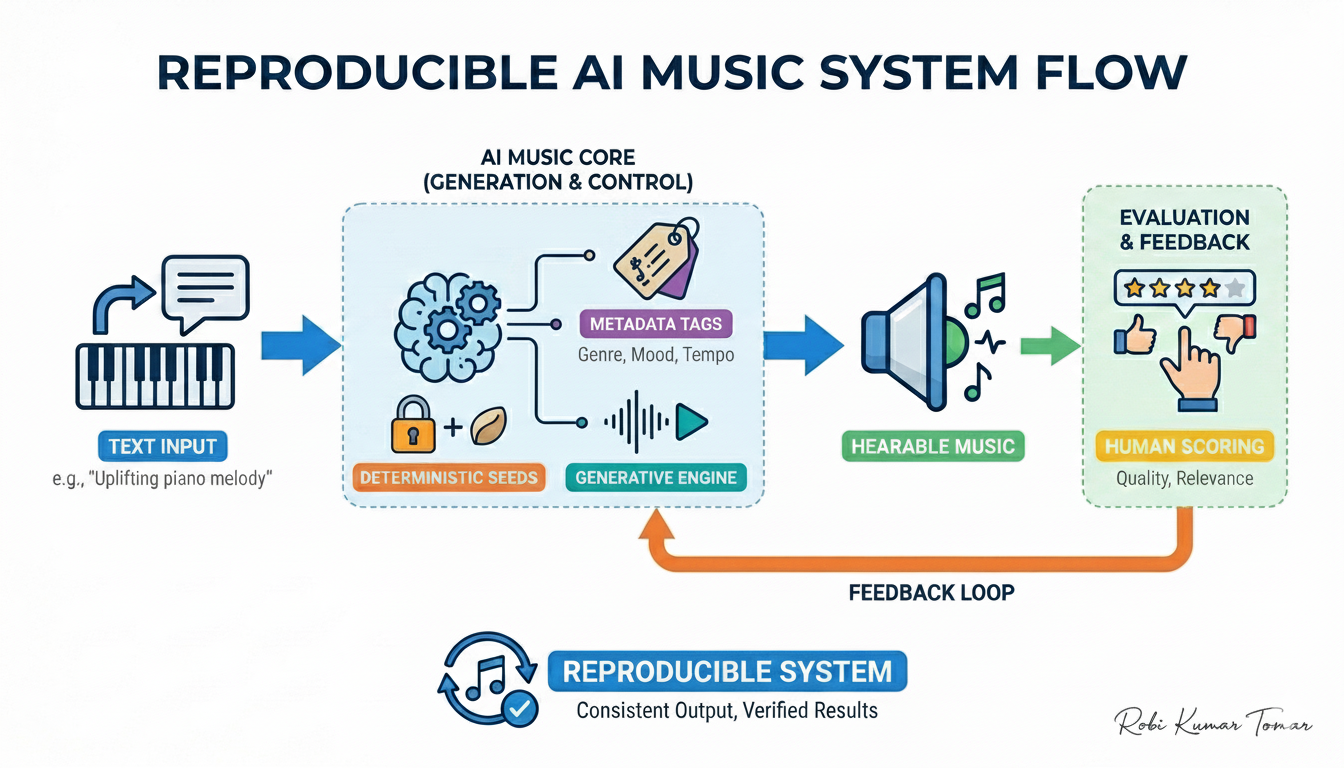
Using an easymusic ai music generator is easiest when you treat it like a repeatable workflow, not a one-shot “magic prompt.” Here’s a creator-friendly checklist you can follow every time.
Step-by-step workflow (repeatable checklist)
Choose the output type
Instrumental (best for BGM) vs vocal song (best for full “track” moments).
Write a clear text prompt
Include genre + mood + instruments + intended use (loop, intro, background).
Set controls (if available)
Tempo/energy, length, intensity, vocals on/off, etc.
Generate multiple versions
Make 3–6 variations before you decide; the best one is often not v1.
Shortlist and test in context
Drop it into your video timeline or gameplay loop to check pacing.
Download and do light edits
Trim, fade in/out, basic EQ, loudness adjustment.
Name + archive the winning prompt
Save prompt + settings so you can reproduce a “channel sound.”
The “5-minute beginner flow”
Pick Instrumental
Prompt: “lofi hip hop, warm vinyl, soft keys, 90 bpm, no vocals, loopable 30 seconds”
Generate 4 versions
Pick the cleanest arrangement
Add a quick fade and export for your timeline
After you’ve got a couple tracks, come back and refine prompts using the formula below.
Prompt formula for better results (genre + mood + instruments + structure)
A reliable prompt formula:
Genre + Mood + Instruments + Tempo + Structure + Mix notes + Use case
Key detail: being specific about instruments, BPM, and structure usually produces more stable results than only “happy cinematic.”
Copy/paste prompts (edit the bracketed parts):
Lofi study loop
“Lofi hip hop, cozy and mellow, Rhodes piano, soft kick/snare, vinyl crackle, 88 BPM, no vocals, loopable 25 seconds, smooth ending.”
Cinematic trailer cue
“Cinematic orchestral, tense to epic, strings and brass, big percussion, 120 BPM, build-up then climax, 60 seconds, wide stereo, clean mix.”
EDM short-form drop
“Future bass EDM, energetic and bright, punchy drums, lush chords, sidechain feel, 150 BPM, intro 5s then drop, 20 seconds, no vocals.”
Acoustic vlog background
“Acoustic folk, warm and uplifting, fingerpicked guitar, light shaker, 100 BPM, simple progression, 45 seconds, minimal, background friendly.”
Corporate explainer bed
“Corporate upbeat, confident and clean, muted guitar, plucky synth, light drums, 115 BPM, steady groove, 30 seconds, no vocals.”
Retro 80s synthwave
“Synthwave 80s, neon and nostalgic, analog bass, gated snare, arpeggiated synth, 95 BPM, loopable 40 seconds, no vocals.”
Game exploration ambient
“Ambient game music, mysterious but calm, pads and soft bells, slow pulse, 70 BPM, seamless loop, 90 seconds, no vocals.”
For deeper context on how prompting and model constraints tend to work across platforms, see this overview: AI music generators explained.
How to fix common output problems (repetitive loop, weird vocals, muddy mix)
Most “bad outputs” are fixable with small prompt edits. Use this troubleshooting map:
1) Problem: repetitive loop / no progression
Likely cause: prompt lacks structure cues; model defaults to a repeating motif.
Fix: add arrangement instructions:
“intro → verse → chorus → bridge → final chorus”
“add subtle variation every 8 bars”
“buildup at 0:20, breakdown at 0:40”
2) Problem: weird vocals / uncanny pronunciation
Likely cause: conflicting style words (e.g., “soft whisper” + “power belting”) or too many references.
Fix:
simplify: “clear female vocal, pop tone, minimal vibrato”
specify language and delivery: “English, clean articulation, no ad-libs”
if the tool supports it, switch to instrumental and add vocals later elsewhere
3) Problem: muddy mix / cluttered low-end
Likely cause: too many instruments fighting in the same range (bass + pads + low piano).
Fix:
“minimal instrumentation, leave space for voiceover”
“tight kick and bass, no heavy sub”
“clean mix, clear midrange”
Light editing can also rescue a “nearly there” track:
Trim + fade in/out to hide abrupt starts
Small EQ cut around “mud” (often low-mids) and a gentle limiter for loudness
If you’re generating music under time pressure, don’t keep stacking keywords. Remove 30–40% of descriptors and regenerate—clarity often beats detail.
EasyMusic AI features that matter for creators (not a marketing list)
When evaluating easymusic ai, ignore flashy claims and focus on workflow outcomes: can you reliably get “usable audio” for your content schedule?
Use this table as a practical scorecard:
To see how EasyMusic AI positions its own features, compare your needs against the official product page: EasyMusic AI Music Generator. For broader category expectations, it also helps to skim a roundup of common generator capabilities and trends (as a reference frame, not a guarantee of specific features): AI music generators overview.
What to check before you publish: file format, duration, and editing flexibility
Before you ship anything generated by an easymusic ai music generator, do a quick export-and-edit audit:
File format: MP3 is fine for drafts; WAV is better for final mixes and loudness control.
Duration + edit points: does it have a clean start? a usable ending? a loop point?
Editing flexibility: can you get stems? If not, plan edits that work on a single stereo file.
Loudness (practical): avoid blasting music under voiceover; aim for comfortable headroom.
Two quick presets based on use case:
Short video (10–45s)
Choose punchy intros, early hooks, and clean endings
Prefer minimal arrangements so SFX and dialogue still cut through
Long video / stream (5–60min)
Prioritize loopable cues and low fatigue (no constant lead melody)
Generate several variations in the same style and rotate them
Can you use EasyMusic AI commercially? Licensing, rights, and attribution checklist
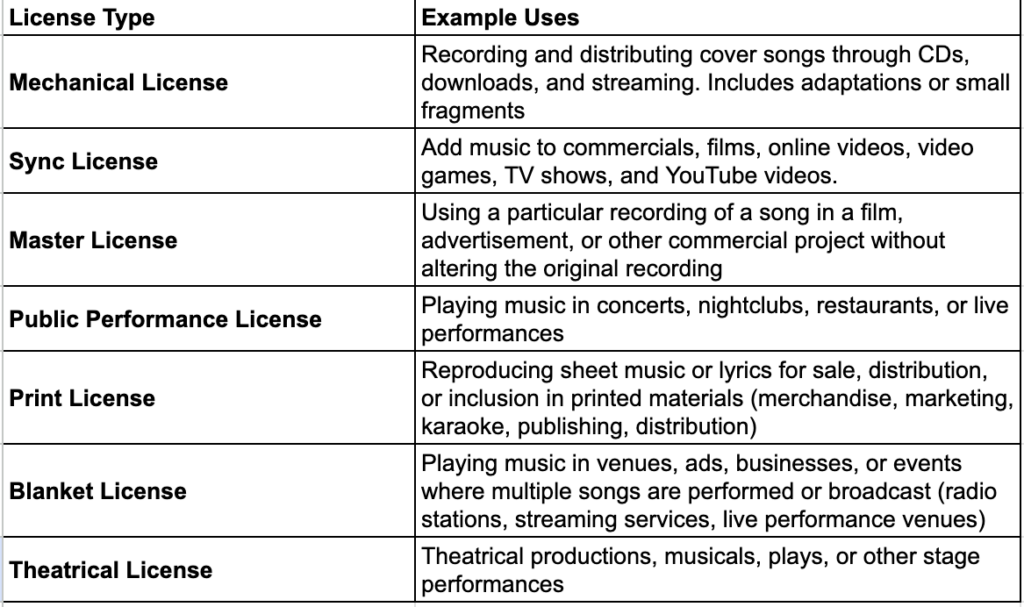
Commercial use is the #1 anxiety point—and it’s justified. AI music tools can differ dramatically in what they allow, and the rules may depend on your plan tier. So the only safe approach is: read the current license/terms inside EasyMusic AI and save a copy for your records.
Here’s a practical checklist you can follow before you publish:
Confirm your plan tier grants commercial rights
Some tools allow personal use on free tiers and commercial use only on paid tiers.
Check attribution requirements
If attribution is required, note the exact wording and where it must appear (video description, credits, etc.).
Understand platform restrictions
Ads, sponsored content, client work, broadcast, games, apps—these can be treated differently in some licenses.
Plan for Content ID / claims
Even legitimately licensed tracks can trigger automated claims on some platforms.
Keep your subscription receipts and the track’s generation/download proof.
Avoid “in-the-style-of” living artists for commercial releases
Even if technically allowed, it can increase dispute risk and brand risk.
Document the prompt + date
Helps if you ever need to show provenance.
If you want background context on why AI music licensing varies so much across tools (and why reading terms matters), this high-level explainer can help: AI music generator considerations.
EasyMusic AI vs popular alternatives: which tool fits your workflow?
“Best” depends on your workflow. Compare tools by the job you need done: voice realism, BGM speed, control, and how clear the commercial license is.
A demand-led comparison template (fill in based on your testing and each tool’s current terms):
To identify the most common competitors people cross-shop, you can browse a competitor snapshot here: EasyMusic.ai competitors. If your shortlist includes tools similar to Suno-style creation flows, this roundup can also help you frame what to compare: best Suno AI alternatives.
If you want an easier “all-in-one” creation flow, try MelodyCraft as an alternative
If your priority is an “idea → track” flow with fewer app hops, MelodyCraft can be a cleaner alternative—especially when you want a repeatable workflow for content production (not just a one-off generation).
A simple way to decide:
Choose EasyMusic AI if you’re happy generating tracks and doing your organizing/editing elsewhere.
Choose MelodyCraft if you care about an end-to-end flow (faster iteration, fewer exports, fewer tool switches).
You can review current plans and what’s included on the MelodyCraft pricing page. If you’re also evaluating AI music tools broadly, this related review may help your comparison mindset: MusicGPT review on MelodyCraft.
Who should (and shouldn’t) use EasyMusic AI? Real-world use cases
EasyMusic is best when you need “good enough, on brand, on time.” It’s not ideal if you need full production control, stems, or a signature artist identity without additional work.
Here are realistic use cases with prompt direction and structure tips:
1) YouTubers / short-form creators
Goal: quick background music that matches pacing and doesn’t fight dialogue
Prompt focus: “background friendly,” “minimal,” “no vocals,” BPM aligned to cuts
Structure tip: generate 20–35s with a strong first 3 seconds
Example prompt: “Upbeat corporate, clean and minimal, plucky synth + muted guitar, 115 BPM, no vocals, 25 seconds, voiceover safe, clean ending.”
2) Podcasters
Goal: consistent intro/outro and segment stings
Prompt focus: simple motif, recognizable instrumentation, fixed duration
Structure tip: 8–12s intro, 3–5s sting, 8–12s outro
Example prompt: “Warm acoustic, friendly and modern, light percussion, 100 BPM, 10 seconds intro theme, no vocals, clean ending.”
3) Indie game developers (prototype stage)
Goal: loopable exploration/combat beds without distracting leads
Prompt focus: “seamless loop,” “ambient,” “light motif,” clear energy level
Structure tip: 60–120s loops; generate multiple intensity tiers
Example prompt: “Fantasy ambient, mysterious calm, pads + soft bells, 70 BPM, seamless loop 90 seconds, no vocals, minimal melody.”
4) Marketers / ad creatives
Goal: fast cues for different moods (trust, urgency, celebration)
Prompt focus: clear emotion + brand-safe instrumentation
Structure tip: build to a logo sting at the end (final 1–2 seconds)
Example prompt: “Bright pop, optimistic and confident, clean drums, light synths, 120 BPM, 20 seconds, build to final hit for logo.”
5) Musicians making demos
Goal: rapid sketching and reference vibes
Prompt focus: era, instrumentation, structure, key/tempo hints
Structure tip: specify sections (verse/chorus/bridge) to avoid aimless loops
Example prompt: “Indie pop demo, nostalgic and dreamy, clean guitar + synth pad, 105 BPM, verse chorus bridge chorus, 90 seconds, no vocals.”
If you shouldn’t use it:
You require stems for mixing (unless the tool explicitly provides them).
You’re releasing under a strict label workflow that needs clear, auditable licensing and provenance.
You need highly specific arrangement moves (odd time signatures, precise chord progressions) without heavy manual editing afterward.
EasyMusic AI FAQ (answers to the questions people actually ask)
Q: Do I need to add a copyright statement when I use EasyMusic AI music?
A: It depends on the tool’s license and your plan. Some require attribution; others don’t. Check EasyMusic AI’s current terms inside your account and keep a copy for reference.
Q: Can EasyMusic AI generate music in the style of a specific artist?
A: Many tools discourage or restrict “in the style of” prompts for living artists. Even when it works technically, it can increase dispute risk for commercial publishing. Safer approach: describe genre, era, instruments, and mood instead.
Q: Does EasyMusic AI support multi-language vocals?
A: If vocal generation is available, language support varies by model and can change. Test short phrases first, specify the language in the prompt, and expect more artifacts outside major languages.
Q: Can I edit the track after downloading?
A: Yes—at minimum you can trim, fade, EQ, and mix it under voiceover. If you need deeper edits (changing melody/bassline independently), you’ll want stems—only some tools offer that.
Q: What should I do if generation fails or outputs silence?
A: Simplify the prompt, remove conflicting instructions, reduce the number of instruments, and retry at a different duration. If the tool has a queue, try again later—peak hours can cause errors.
Q: How do I avoid repetitive melodies?
A: Ask for structure and variation: “add variation every 8 bars,” “introduce a counter-melody in the chorus,” or specify “verse/chorus/bridge.” Generating multiple versions and comping the best sections also helps.
Q: Can I use EasyMusic AI tracks on YouTube without Content ID issues?
A: You can still get automated claims even with legitimate rights. Keep receipts, export logs, and license text. If a claim happens, dispute with documentation and consider swapping to an alternate version.

Make Ready-to-Publish Music in Minutes 🎵
Go from idea to finished track quickly. No technical skills required.