

LoudMe is a useful AI music tool for fast background tracks and simple sound effects, especially if you want quick results without much editing. It does offer a free way to try the generator, but downloads, export options, and commercial use are more limited than many users expect, so it's important to check pricing before relying on it for serious projects.
LoudMe is an AI music generator for creating songs, background tracks, and sound effects from prompts. It is mainly useful for creators who want fast, ready-to-use audio for videos, social media, podcasts, or lightweight music projects.
Yes, LoudMe offers a free way to try AI music generation, but downloads, export formats, and commercial use depend on your plan. If you're searching for how to download LoudMe tracks, whether the free version is enough, or when to consider alternatives, this review will help you decide quickly.
We’ll break down what LoudMe does well, how its pricing and credits work, how downloads usually work on web and mobile, what to check before paying, and which alternatives make more sense if you need more control.
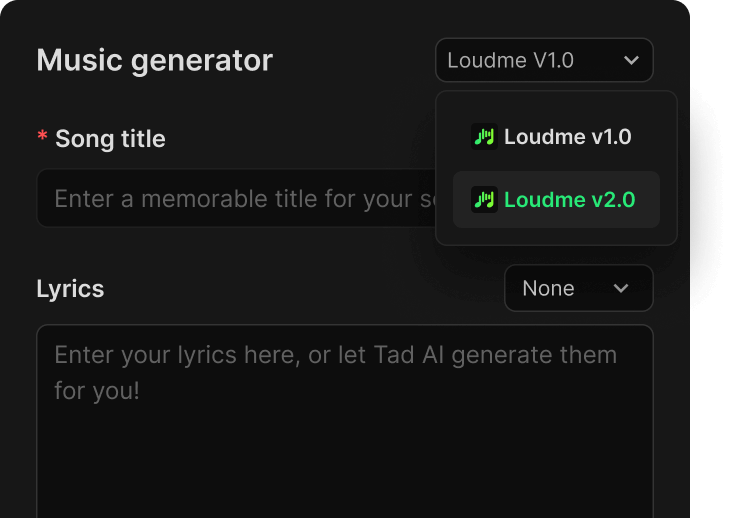
Is LoudMe free? What the free plan actually gives you
Yes, LoudMe does offer a free way to try AI music generation, but “free” does not mean full access to every export, download, or commercial-use feature. For most users, the real question is not whether LoudMe is free to open, but whether the free plan is enough for the kind of music workflow they actually need.
In practice, the free version is mainly useful for testing the generator, exploring different styles, and seeing whether LoudMe’s output fits your content. The limitations start to matter when you need reliable downloads, clearer commercial rights, or enough credits to turn occasional testing into a repeatable workflow.
In other words, the free version can be enough to tell you whether LoudMe is interesting, but not always enough to tell you whether it works well for real publishing, client work, or a repeatable content pipeline. That is why free access alone is not the best decision point — export rights, credits, and licensing usually matter more.Here’s a fast verification checklist you can use:
In short, LoudMe’s free access is useful for testing the product, but it should not automatically be treated as a complete publishing workflow. Once downloads, higher usage, or commercial use start to matter, pricing and licensing become more important than the word “free” itself.
Avoid “cracked” installers or unofficial APKs/DMG files. For AI music tools, that’s one of the fastest ways to trade a free beat for malware.

More than background music? Start with MelodyCraft
If you want to turn an idea into a song-ready draft fast, MelodyCraft usually gives you the more direct workflow.
LoudMe works best when you need fast, usable audio rather than deep music production control. In practice, it is more useful for creators who want quick background tracks, simple atmosphere, or lightweight draft generation than for users who need detailed arrangement, lyric-first workflows, or heavy post-generation editing.
What is Loudme AI used for (YouTube, TikTok, podcasts, games)?
Loudme AI music is typically used when you need “good-enough, fast” background audio without hiring a composer or spending hours digging through stock libraries. Think of AI as a creative partner—an idea machine that helps you iterate quickly—rather than a replacement for taste and editing.
Below are practical use cases and copy-ready prompt templates you can adapt. (If Loudme offers advanced controls like tempo, duration, or instrument toggles, append those at the end of the prompt.)
1) YouTube videos (explainer, tutorial, vlog)
For YouTube videos, LoudMe is most useful when you need music that supports talking without becoming distracting. It works better for explainer videos, tutorials, and vlogs than for highly structured original songwriting.
Prompt template: “Warm lo-fi hip hop, relaxed mood, soft vinyl crackle, mellow keys and light drums, unobtrusive background for talking, seamless loop.”
2) TikTok / Reels (high-retention short-form)
For TikTok and Reels, LoudMe can be useful when speed matters more than deep customization. It is better suited to short, catchy, punchy audio ideas than to highly polished full-song production.
Prompt template: “Upbeat electronic pop, playful mood, bouncy bass and claps, bright synth hook, 15–20 seconds, clean punchy mix for vertical video.”
3) Podcasts (intro/outro and voice bed)
For podcasts, LoudMe makes the most sense as a source of simple intros, outros, and low-distraction background beds. It is usually more useful for atmosphere than for highly branded, signature-level theme composition.
Prompt template: “Minimal ambient bed, calm and confident, soft pads and subtle percussion, low frequencies controlled, designed under voice narration.”
4) Games / livestream (atmosphere and tension control)
For games and livestreams, LoudMe is better for fast ambient mood-setting than for complex adaptive scoring. It works best when you need tension, atmosphere, or background texture quickly.
Prompt template: “Cinematic sci-fi atmosphere, mysterious and tense, drones + pulses + distant impacts, slow build, perfect for gameplay background.”
5) Ads / product videos (brand-safe, modern, clear arc)
For ads and product videos, LoudMe is useful when you need clean, modern, brand-safe background music quickly. It is a practical option for fast drafts, especially when the music needs to support visuals rather than lead the story.
Prompt template: “Modern corporate motivational, optimistic mood, clean guitar + light piano + stomp claps, steady build, 30 seconds with a satisfying end.”
Across these use cases, the main strength of LoudMe is speed: it helps users get to a usable draft quickly. The tradeoff is that once you need more detailed control, stronger editing, or a more song-first workflow, the tool may start to feel limiting.
If your output feels “too AI,” add constraints that sound like a music brief: “unobtrusive under voice,” “no busy lead melody,” “controlled low end,” or “avoid dramatic key changes.”
How to generate music with Loudme AI music generator (step-by-step prompts)
LoudMe usually works best when you treat it as a fast draft generator rather than a one-shot tool for finished music. Most users get better results by generating several options quickly, keeping the closest version, and then improving the prompt one variable at a time instead of rewriting everything from scratch.
Step-by-step: from zero to export-ready
LoudMe usually works best when you treat it as a fast draft generator rather than a one-shot tool for finished music. Most users get better results by generating several options quickly, keeping the closest version, and then improving the prompt one variable at a time instead of rewriting everything from scratch.
Choose a direction (style + mood). Start with a clear genre and emotional target instead of a vague request.
Add instrumentation. Name only a few key instruments so the output stays cleaner and more focused.
Define tempo or energy. If there is no BPM field, describe the pace directly in the prompt.
Specify the use case. Tell LoudMe whether the track is for a voiceover, short-form video, podcast intro, ad, or background atmosphere.
Generate multiple versions. Save the results that are close, even if they are not perfect on the first try.
Iterate with edits, not rewrites. Change one variable at a time so you can tell what actually improved the result.
Save to your library or project. Use a simple naming pattern so you can compare versions later without losing your best take.
A simple prompt formula that works
Use this structure as your baseline:
Genre + Mood + Instruments + Tempo/Energy + Use case
Example:
“Cinematic ambient, hopeful, piano + strings + soft percussion, slow build, background for a product story video.”
“Bad prompt vs good prompt” (why specificity wins)
Practical naming scheme (so you don’t lose your best take)
When you save or download, try:
Project-UseCase-Genre-BPM-Version
Example: SkincareAd-30s-IndiePop-120-v3
LoudMe sound effects: when they work and when they do not
LoudMe’s sound effect capability is useful, but it feels more like a supporting feature than a core reason to choose the product. It works best for quick ambience, transitions, and simple effects, but it is less reliable when you need highly specific Foley, precise sync, or production-ready sound design.
When it shines
Where LoudMe sound effects are most useful is in quick creator workflows where speed matters more than precision.
Ambience beds: café room tone, rain, forest night, city traffic far away
Simple Foley: button clicks, footsteps, fabric movement, object drops
Transitions: whooshes, risers, glitches, impacts for cuts and motion graphics
When it falls short
The limitations show up quickly when your project needs detail, precision, or cleaner post-production control.
Complex, story-specific Foley (e.g., “ceramic cup hits metal table then rolls”)
Precise sync needs (frame-accurate impacts)
Clean isolation (some generations may include unwanted tails/noise)
Better SFX prompting: describe physics, not vibes
When prompting for sound effects, physical description is usually more useful than abstract mood language.
For sound effects, swap “genre/mood” language for a physical description:
Action + Material + Distance + Space/Reverb + Intensity
Try prompts like:
“Single footstep on wet concrete, close mic, small alley reverb, medium intensity.”
“Mechanical keyboard click, tight and dry, very close, no room echo.”
“Short whoosh transition, medium pitch rise, clean tail, no distortion.”
“Ceramic mug placed on wooden table, gentle, close mic, quiet room tone.”
Editor-friendly file naming
If you export several sound effect variations, use a simple naming pattern so they stay searchable in Premiere, Resolve, or Final Cut. Something like SFX_Whoosh_Med_01 or AMB_Cafe_Loop_60s_02 is usually enough.
So while LoudMe’s sound effects can be genuinely useful for quick creator workflows, they feel more like a convenience feature than a primary reason to choose the platform.
How to download LoudMe music
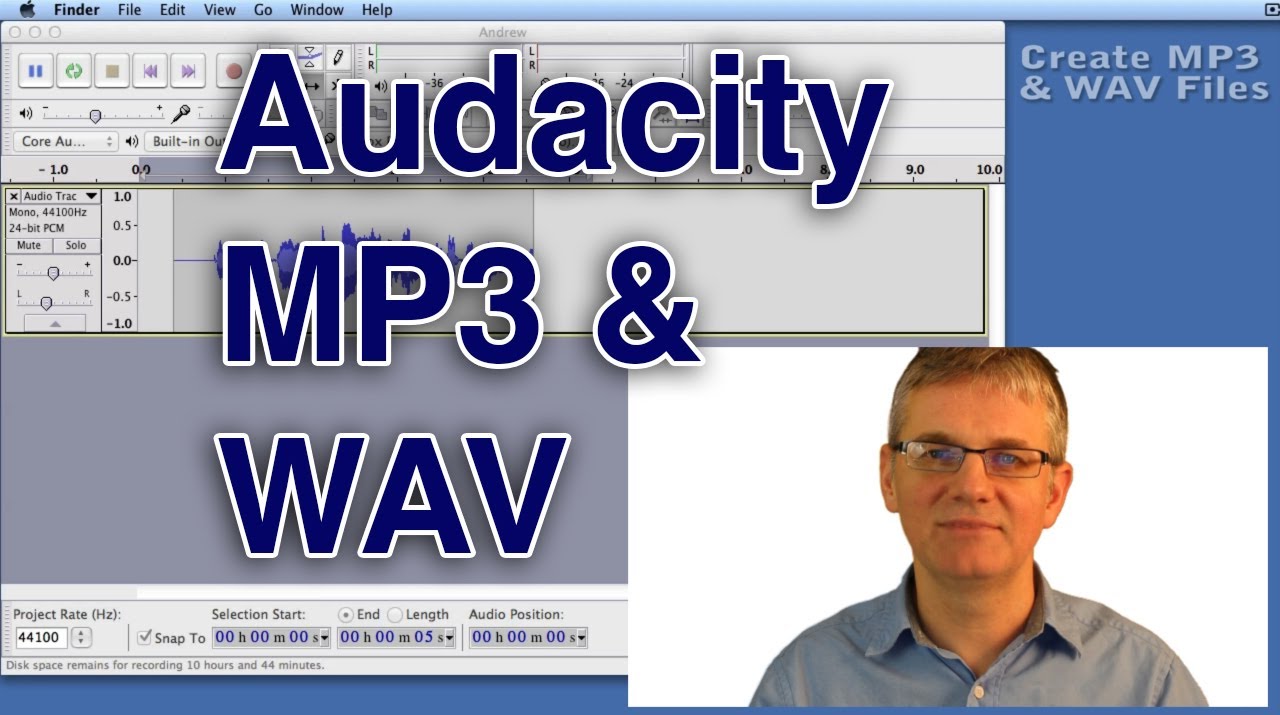
If you are trying to download LoudMe music, the first thing to know is that export access depends on your account status and plan. In most cases, you generate a track first, open it from your library or project view, and then look for the export or download option. If you cannot see that option, the problem is often related to plan limits, login status, or export permissions rather than the track itself.
Quick answer:
- On web, LoudMe downloads are usually managed from the generated track or library page.
- On mobile, downloads are typically handled through the track menu or export/share option.
- If the download button is missing, check whether your current plan includes export access.
Download on Web (generic path)
On web, LoudMe downloads are usually handled from the track you already generated, not from the first prompt screen. In most cases, you need to open your library or project history, choose the track you want, and then look for an export or download action.
1. Open your Library, Projects, or saved track list.
2. Select the track you want to export.
3. Look for Download, Export, or a track menu near the player.
4. Choose the available format, such as MP3 or WAV, if your plan supports it.
5. Confirm the export and then check your browser’s download list or Downloads folder.
Where it’s saved (Web):In most cases, LoudMe exports will go to your browser’s default Downloads folder unless your browser asks you to choose a location first.
Download on Mobile (generic path)
On mobile, LoudMe downloads are usually tied to the track menu, export action, or share flow inside your saved library rather than the first generation screen.
1. Open the generated track from your Library or saved items.
2. Tap the track options menu, often shown as “...” or an export/share icon.
3. Choose Export, Download, or Share.
4. Save the file to Files on iPhone or to Downloads / File Manager on Android, depending on the app flow.
Where it’s saved (Mobile):
- iPhone: usually in the Files app, Recents, or the folder you chose.
- Android: usually in Downloads or your file manager’s recent files list.
Download troubleshooting (most common causes)
If LoudMe will not download your music, the most common causes are missing export permissions, session/login issues, browser restrictions, or plan-based limitations.
If downloading is a core part of your workflow, check LoudMe’s current plan details before assuming the free version gives you the export access or file formats you need.
Is LoudMe free? What the free plan actually gives you
Yes, LoudMe does offer a free way to try AI music generation, but “free” does not mean full access to every export, download, or commercial-use feature. For most users, the real question is not whether LoudMe is free to open, but whether the free plan is enough for the kind of music workflow they actually need.
In practice, the free version is mainly useful for testing the generator, exploring different styles, and seeing whether LoudMe’s output fits your content. The limitations start to matter when you need reliable downloads, clearer commercial rights, or enough credits to turn occasional testing into a repeatable workflow.
What the free plan is usually good for
For most users, the free version of LoudMe is best treated as a testing layer rather than a complete production workflow. It can still be useful in several situations:
- Trying the generator before paying for a subscription
- Testing whether LoudMe’s sound matches your video, podcast, or short-form content style
- Exploring prompt ideas and comparing multiple directions quickly
- Getting familiar with the interface, workflow, and output style before deciding whether the tool fits your needs
Where the free plan may start to feel limited
The free plan usually starts to feel limited once you move from casual testing to repeatable publishing work. The most common friction points are:
- Download or export access may be more restricted than users expect
- Commercial use may be unclear, limited, or tied to paid tiers
- Credit limits can make it harder to test multiple ideas in a serious workflow
- Export quality, file options, or generation volume may not be enough for heavier use
In other words, the free version can be enough to tell you whether LoudMe is interesting, but not always enough to tell you whether it works well for real publishing, client work, or a repeatable content pipeline. That is why free access alone is not the best decision point — export rights, credits, and licensing usually matter more.
What “free” most commonly includes
Limited credits/exports per day/week/month
Lower-quality export (e.g., MP3 only) or shorter durations
Watermarking (less common for pure audio, but some tools add branding tags or restrict stems)
Personal-use license by default, with commercial use reserved for paid tiers
Free vs paid (typical differences to look for)
If your main goal is not just testing but actually downloading tracks for published content, the free plan matters much less than LoudMe’s export rules, credit limits, and commercial-use terms.
So yes, LoudMe can be free enough for lightweight testing, quick experiments, and early idea generation. But it may not be free enough for users who need reliable downloads, repeatable output, or clear commercial use rights. If your goal is to move beyond trying the tool and actually publish with it, the next thing to check is LoudMe’s pricing, export access, and licensing terms.
Treat licensing like part of your workflow. Before you publish monetized content, confirm the exact wording in the tool’s current terms/pricing screens—especially around commercial use and platform distribution.

Is Loudme legit and safe?
LoudMe looks useful as an AI music product, but whether it feels safe to use depends less on the generator itself and more on how clearly the platform explains billing, licensing, account access, and export rights. For most users, the real trust question is not whether the tool can generate music, but whether the rules around payment, downloads, and commercial use are easy to understand before you commit.
If you are considering signing up or paying for LoudMe, the safest approach is a quick trust check before you treat it as a real production tool.
Quick safety checklist (before signup/payment)
Official domain consistency: the homepage, login, pricing, and checkout stay on the same domain.
Terms + privacy policy: easy to find from the footer or account settings (not hidden).
Clear licensing language: explains what you can do with generated music (personal/commercial, attribution, restrictions).
Transparent billing: shows price, renewal cadence, and how to cancel.
Normal permissions: web apps shouldn’t require you to install unknown executables.
Red flags to walk away from
The biggest warning signs are usually not about the music itself — they are about unclear billing, strange download flows, or vague legal terms.
Forced download of a mystery installer to “unlock” exports
Checkout redirects to a different unrelated domain
No cancellation path, or support only via unverified social DMs
Licensing is vague (“you can use it anywhere”) with no legal terms
Mini FAQ for “safe to use?”
Q: Is it safe to use AI music on monetized channels?
A: Often yes, but only if LoudMe’s current license clearly allows monetization or commercial publishing for your plan.
Q: Should I use my main payment card right away?
A: If you are uncertain about renewal terms, cancellation, or licensing, it is safer to verify those details first before committing to a paid plan.
In short, LoudMe may be easy to try, but trust depends on whether pricing, export rights, and licensing are clear before you rely on it for real publishing work. If those details feel vague, that is a stronger warning sign than the music quality itself.
Loudme alternatives if you need more control
LoudMe can be enough if your main goal is fast background tracks, quick drafts, or lightweight audio generation. But once you need more control over lyrics, song structure, editing, or repeatable output, it can start to feel limited compared with more song-first workflows.
That does not mean LoudMe is the wrong tool — it just means the right alternative depends on what kind of control you actually need.
Here’s a needs-based way to choose:
If your priority is a more direct song-first workflow, MelodyCraft is often the more practical alternative because it makes it easier to move from an idea to a usable song draft without splitting the process across too many separate steps.
If you want an all-in-one workflow, try MelodyCraft (lyrics + song generation)
If you like the speed of LoudMe but want a workflow that is more focused on full songs rather than mainly background audio, MelodyCraft is the kind of alternative worth comparing. It makes more sense for users who want to move from an idea or lyric concept into a more complete draft instead of stopping at quick audio generation.
Three common scenarios where this helps:
Short-form creators (TikTok/Reels/Shorts)
Short-form creators can use a song-first workflow to build stronger hooks, more recognizable choruses, and faster iterations for TikTok, Reels, or Shorts.
Podcasters and video essayists
Podcasters and video essayists may benefit more from repeatable intro, outro, and theme workflows than from one-off background track generation.
Indie musicians and hobbyists
Indie musicians and hobbyists may prefer a tool that helps turn rough ideas into fuller drafts they can keep refining, rather than stopping at quick mood-based generation.
If you need comparisons, here are other tools reviewers mention
If you want a broader view of the category, it helps to compare LoudMe with tools that are stronger in areas like full-song drafting, editing control, or creator workflow flexibility.
When you read any comparison, these are the dimensions that matter most in practice:
Audio quality consistency (one great result vs consistently usable results)
Control surface (prompt-only vs timelines/editors/sections)
Licensing clarity (commercial use, attribution, platform restrictions)
Export options (MP3/WAV, lengths, loopable)
Pricing structure (credits, resets, subscription cancellation)
In short, LoudMe makes the most sense when speed is your priority. But if your real goal is more control, more complete songs, or a workflow that feels less fragmented, comparing alternatives becomes the smarter next step.
Loudme FAQ: common questions people search
Q: Is Loudme AI music royalty-free?
A: “Royalty-free” depends on the exact license granted by the tool and the plan you’re on. Look for explicit language covering monetization, client work, and platform publishing.
Q: Can I use Loudme AI music for YouTube and TikTok monetization?
A: Often you can if the commercial license allows it, but don’t assume. Confirm the terms for your account tier and keep proof (invoice/plan level) in case of disputes.
Q: Can Loudme generate music in the style of a specific singer or band?
A: It’s safer to prompt at the genre/era/instrumentation level (e.g., “90s Britpop guitar, upbeat, jangly”) rather than naming specific living artists or trying to clone a signature sound.
Q: How do I make AI music sound more human?
A: Use tighter creative constraints and iteration: fewer instruments, clearer structure (“intro then drop”), and mix-oriented guidance like “no busy lead” or “under voiceover.” Generating 5–10 variations and selecting the best is often more effective than chasing a perfect first prompt.
Q: I tried to download Loudme, but nothing happens—what now?
A: Start with the basics: confirm you’re logged in, disable download blockers, try another browser/device, and check whether your plan has export limits. Also check your browser’s download history to find the file path.
Q: What’s the difference between the music generator and the sound effect generator?
A: The music generator aims for rhythm, harmony, and a consistent bed across time. The sound effect generator aims for short, specific events (whoosh, hit, step) or ambience loops (rain, crowd) and uses “physics prompts” like action/material/space.
Make Ready-to-Publish Music in Minutes 🎵
Go from idea to finished track quickly. No technical skills required.